Tax Results
1120 Tax Form Calculation
After finishing the reclassification, Konvver will provide this overview on the results page to calculate taxes on Form 1120, for each line in web and Excel formats.
A typical example has been created for Form 1120.
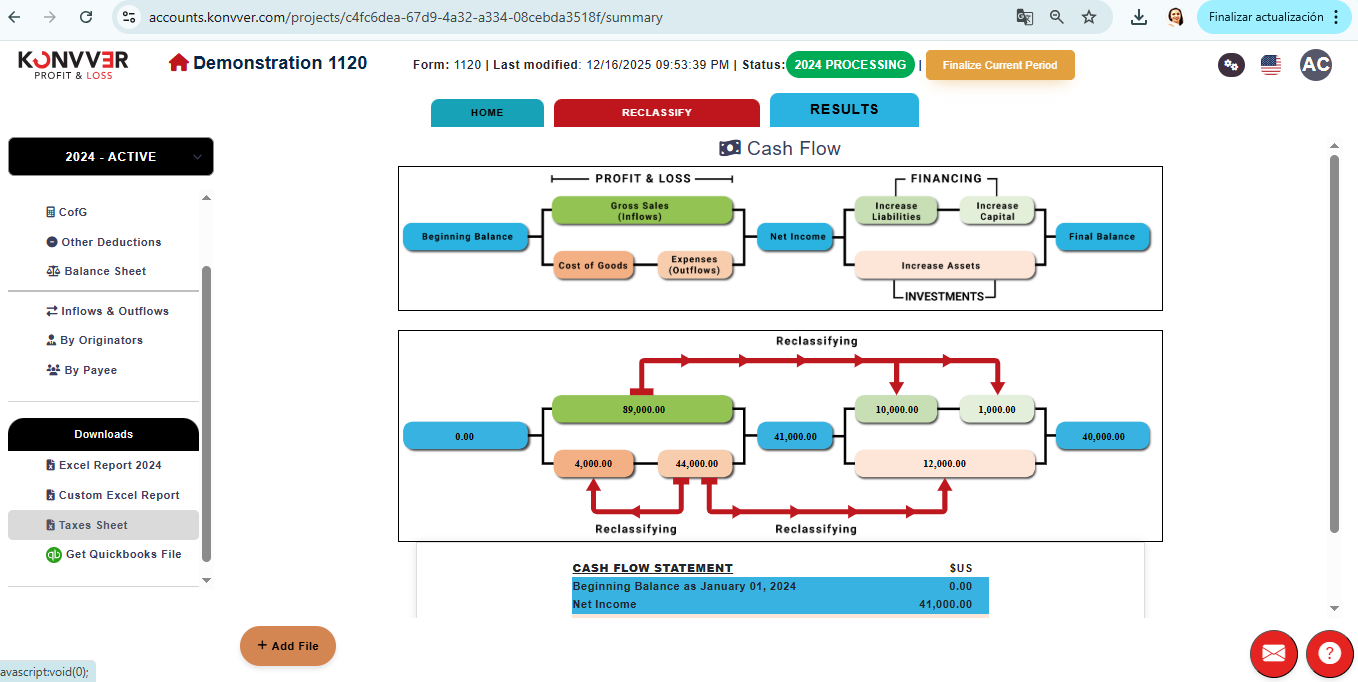
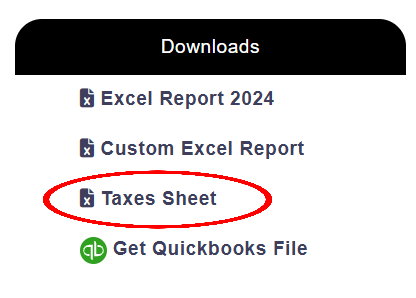
Go to the Downloads section and download the "Taxes Sheet" file, where we can enter depreciation and inventory data IF NECESSARY.
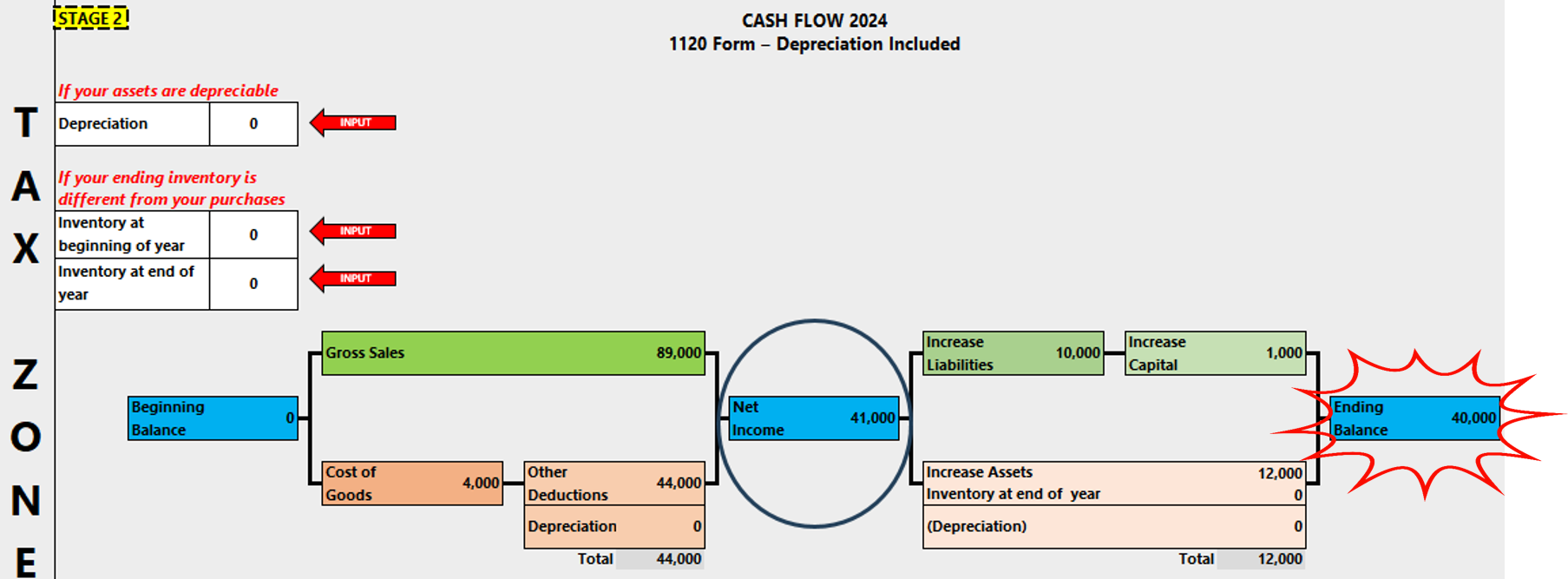
In "TAX ZONE", you can see the results to calculate the values that go on tax Form 1120.
If there are depreciable assets, enter the asset value.
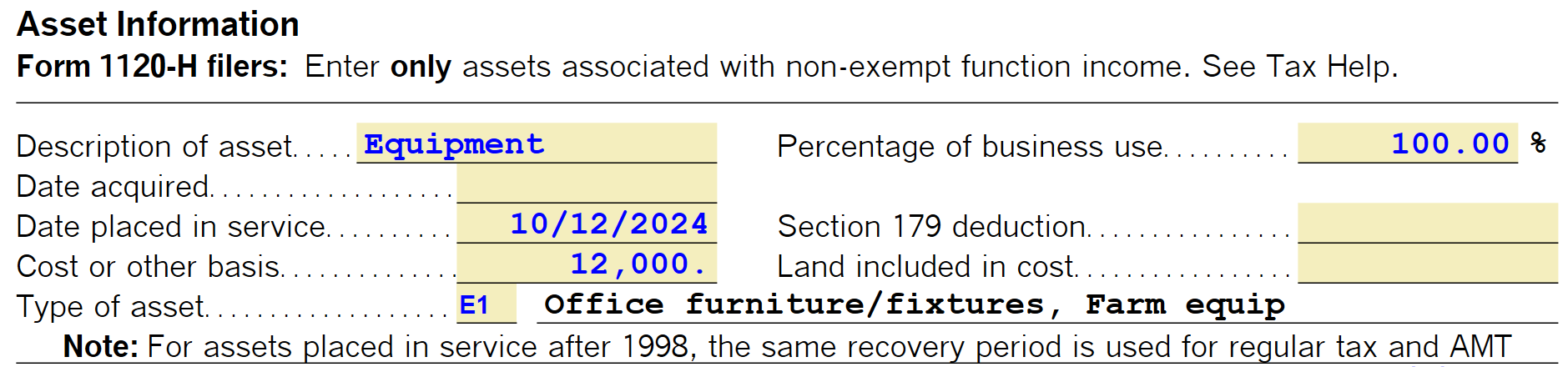
It calculates the depreciation value, which must be copied into the DEPRECIATION CELL.

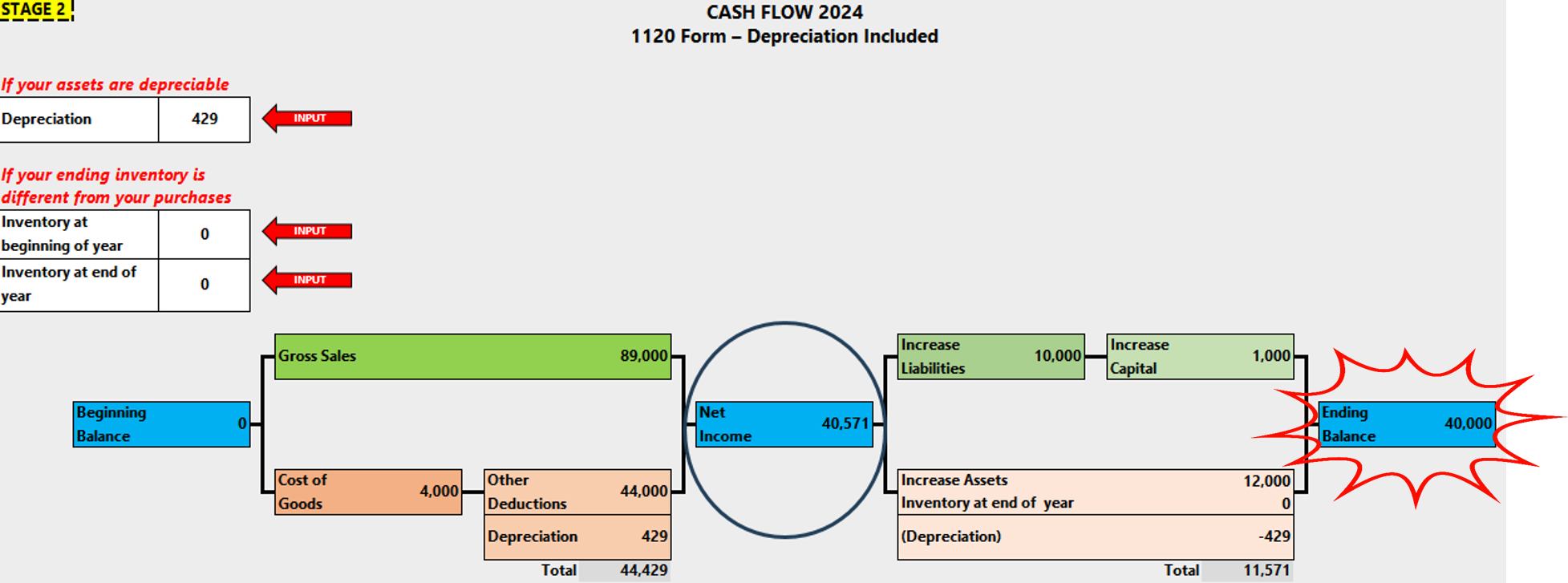
Similarly, we would need to enter the values for both the beginning inventory from the previous year (Line 1) and the ending inventory for the current period (Line 7). In our example: zero beginning and one thousand ending.
With these results, we can obtain the COGS value reflected on Line 8.

This allows you to see the new overview for tax calculation.
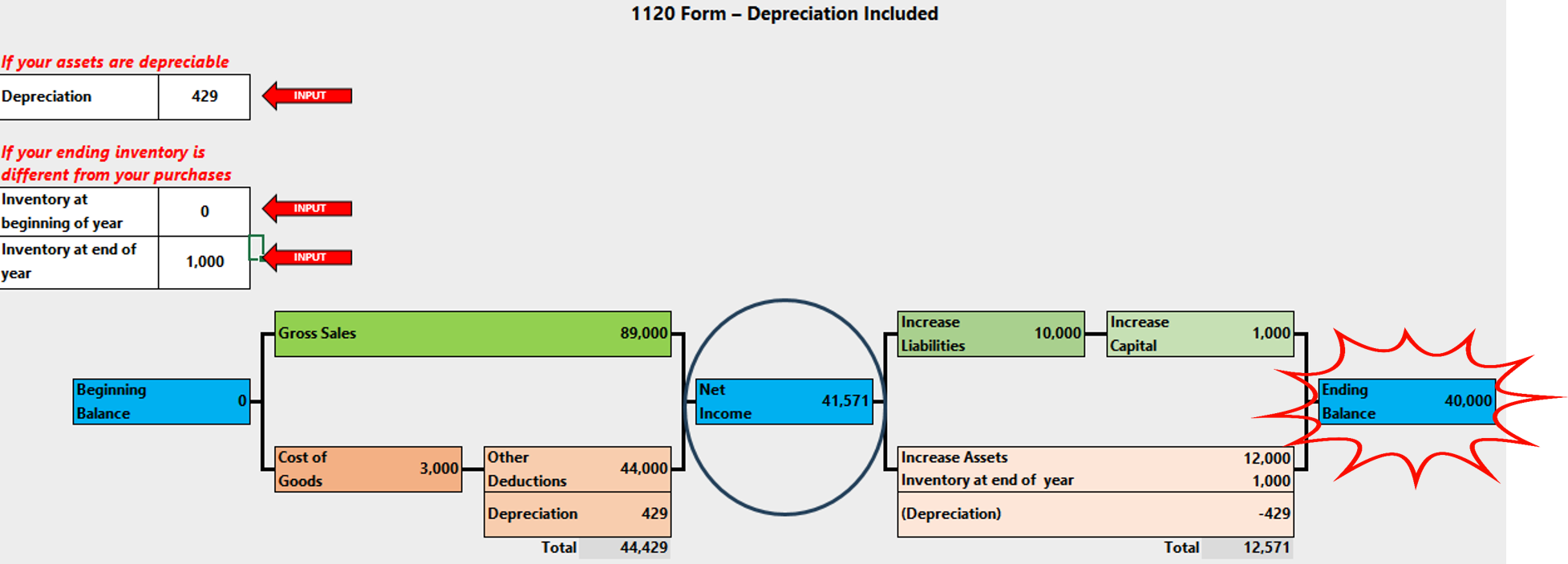
To continue the calculation, transfer the $89,000 value of Gross Receipts or Sales to tax Form 1120, Line 1a.

Finally, enter the value of Other Deductions on line 26.

Copy the Total Tax value from line 31 of Form 1120 and paste it in the corresponding line for Federal Income tax per books, in our case line 2 of Form M-1.

Schedule M-1

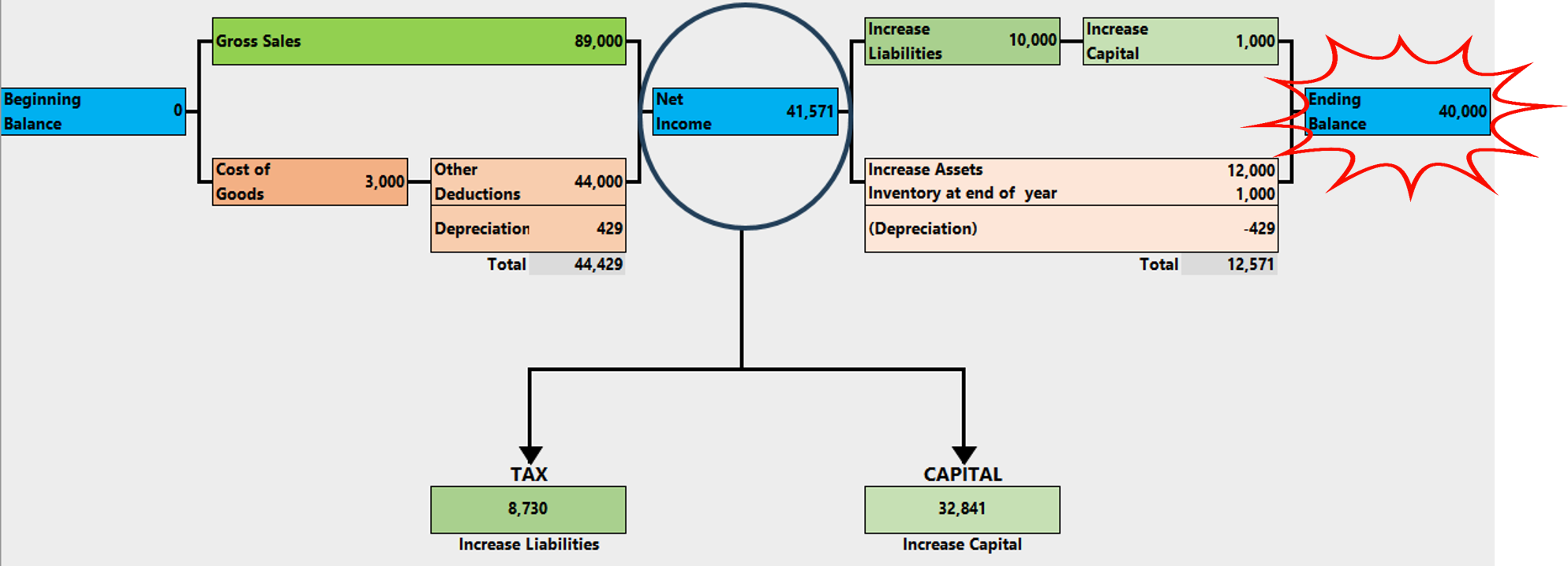
Place the $8,730 tax in Accounts Payable on the Balance Sheet.
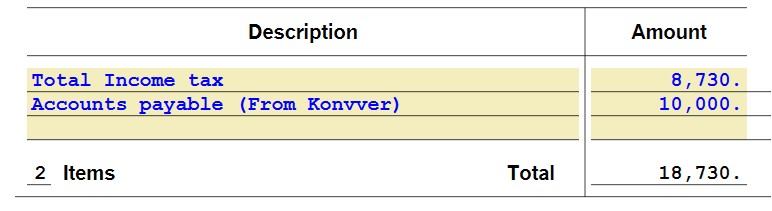
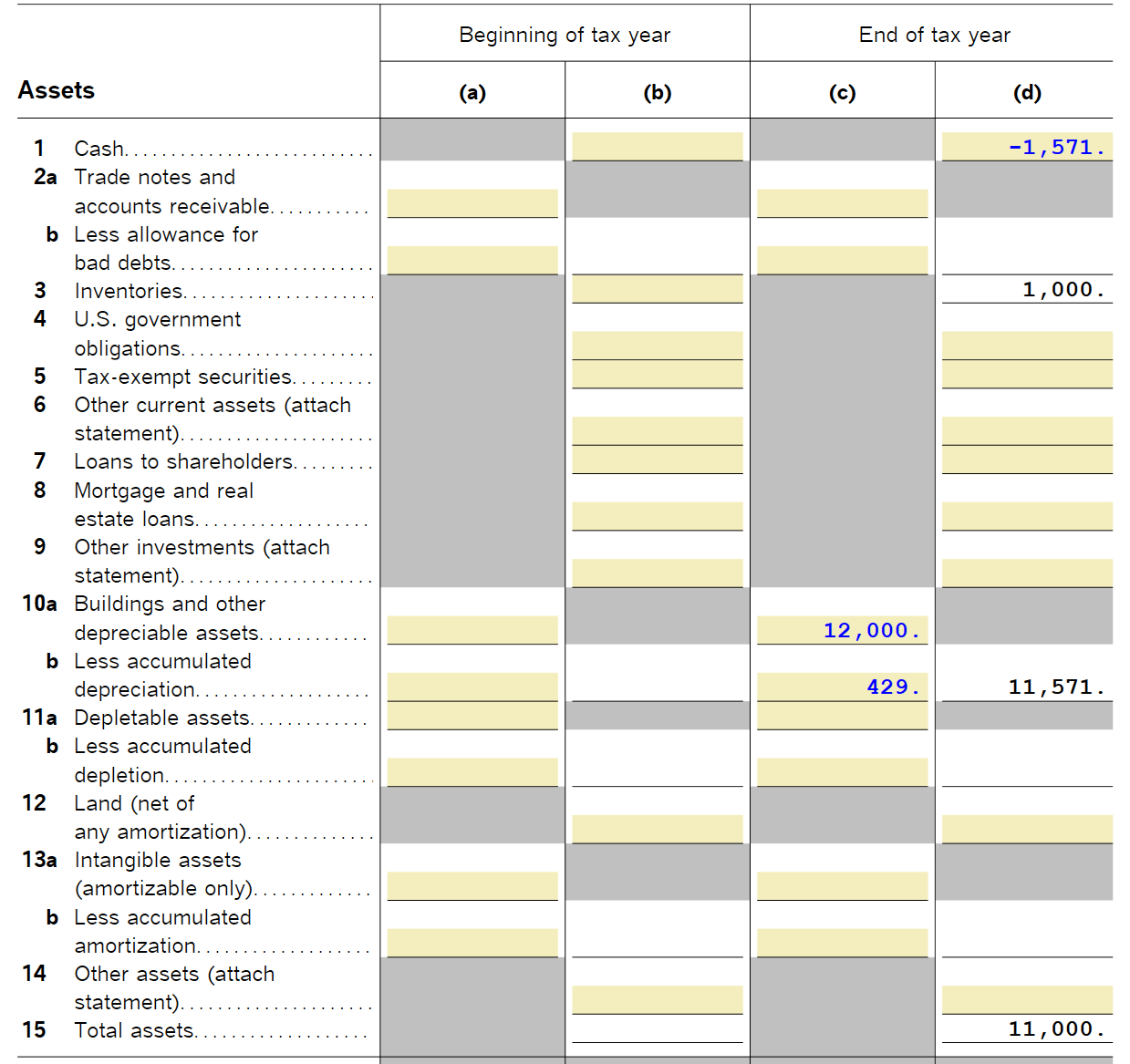
Transfer the Balance Sheet data from Tax Zone to Schedule L Balance Sheets Per Books.

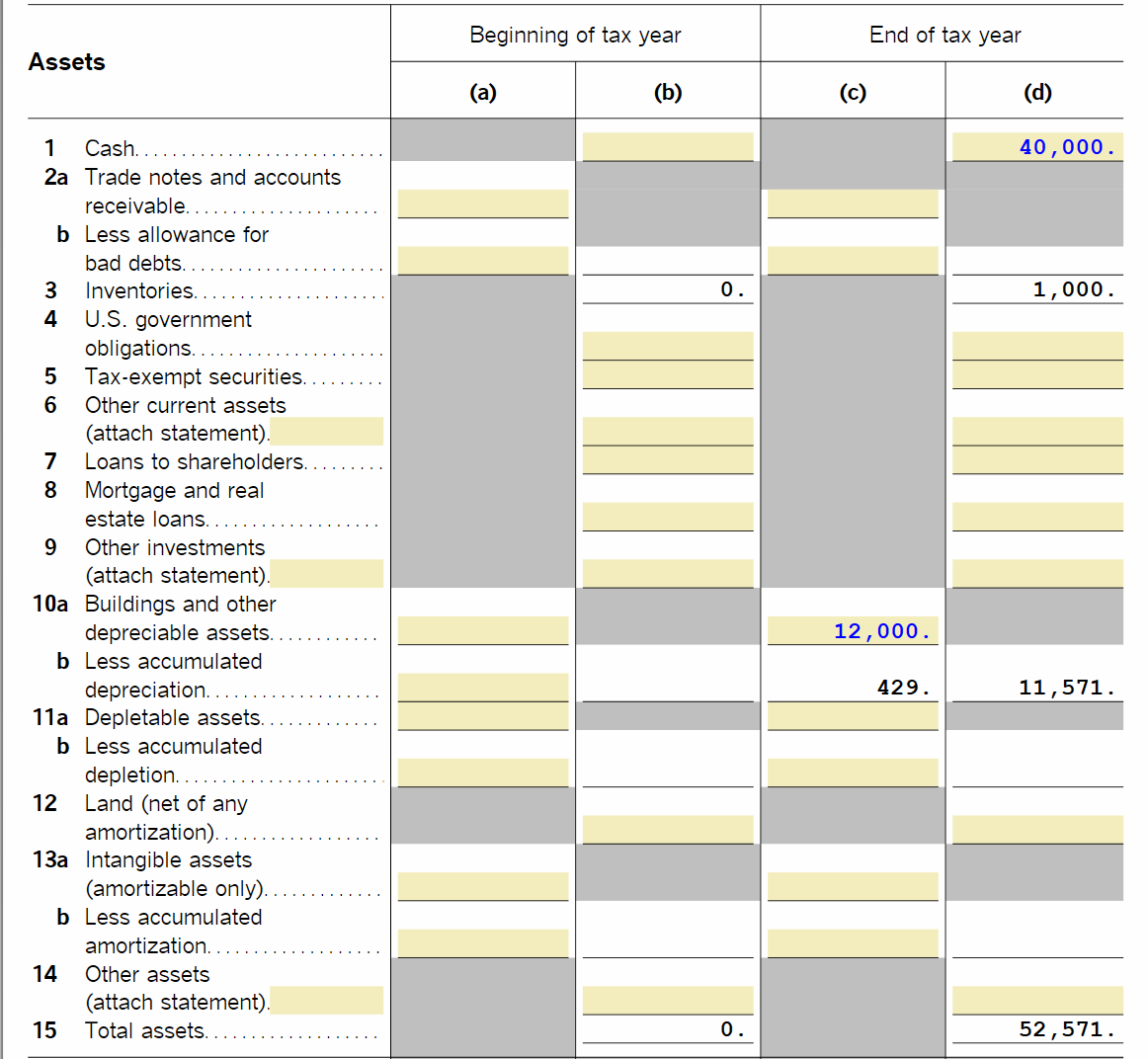
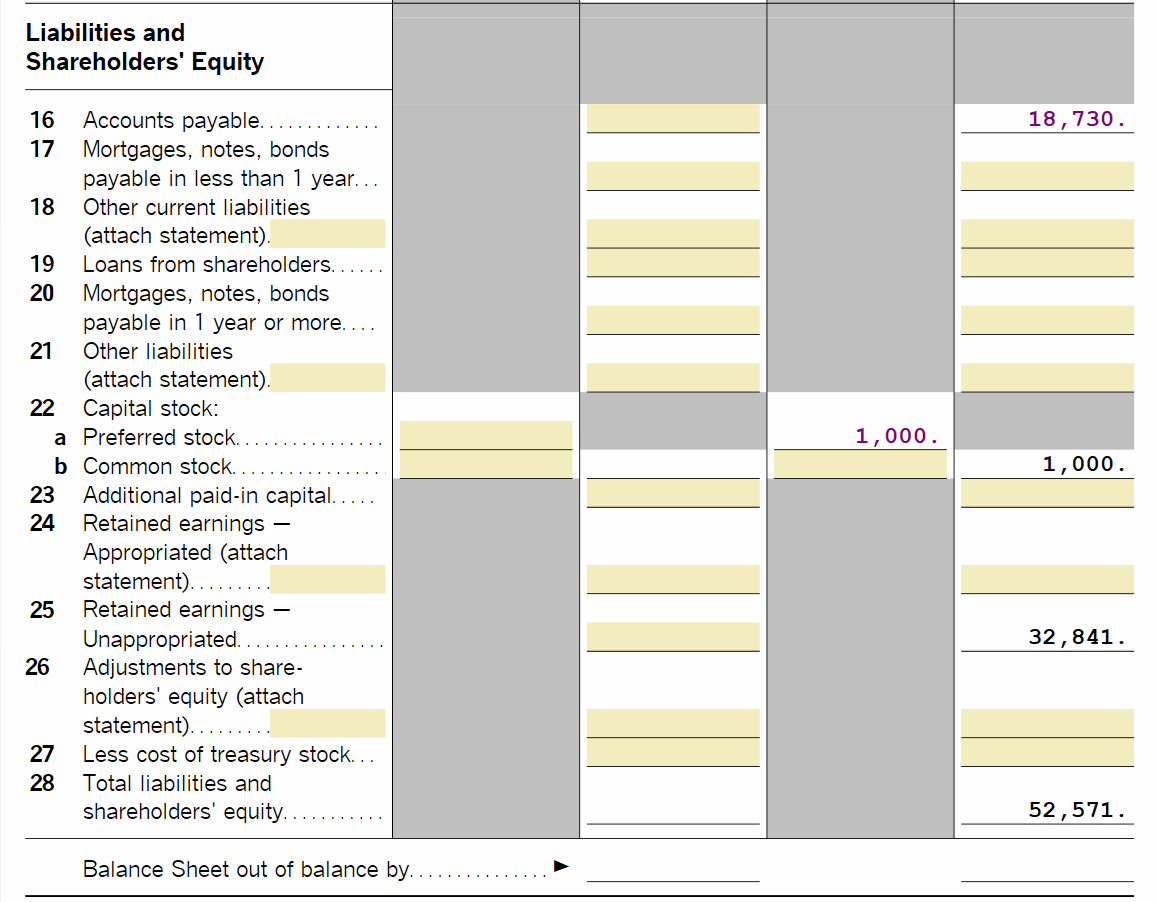
This completely eliminates the adjustment steps traditionally performed by accountants at the close of each fiscal year. The process no longer depends on accounting and instead allows connecting one fiscal year with the next as a continuous and verifiable chain.
The pivot that validates the entire system is the ending bank balance value, which is reflected in the tax sheet (Taxes Sheet) and must exactly match the ending balance of the bank statements.
1120S Tax Form Calculation
After finishing the reclassification, Konvver will provide this overview on the results page to calculate taxes on Form 1120S, for each line in web and Excel formats.
A typical example has been created for Form 1120S.
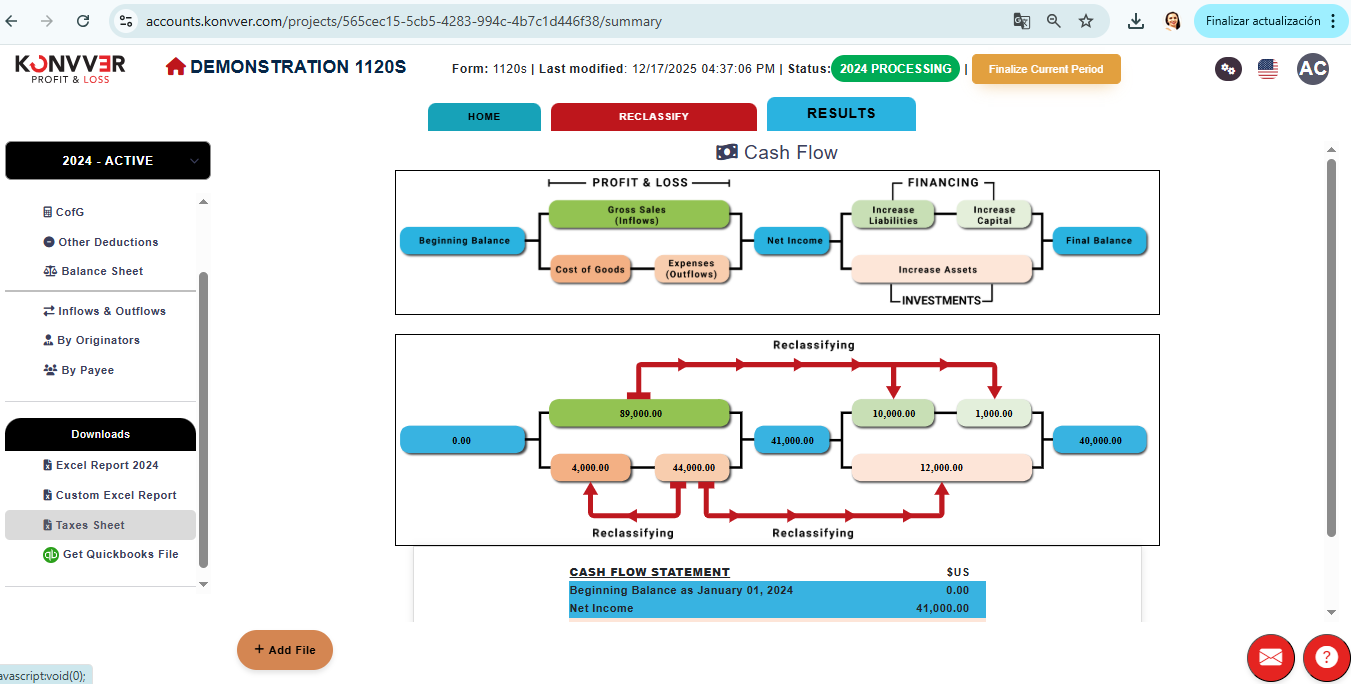
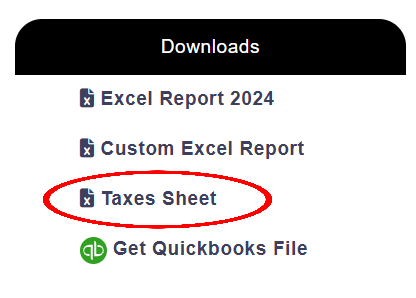
Go to the Downloads section and download the "Taxes Sheet" file, where we can enter depreciation and inventory data IF NECESSARY.
In "TAX ZONE", you can see the results to calculate the values that go on tax Form 1120S.
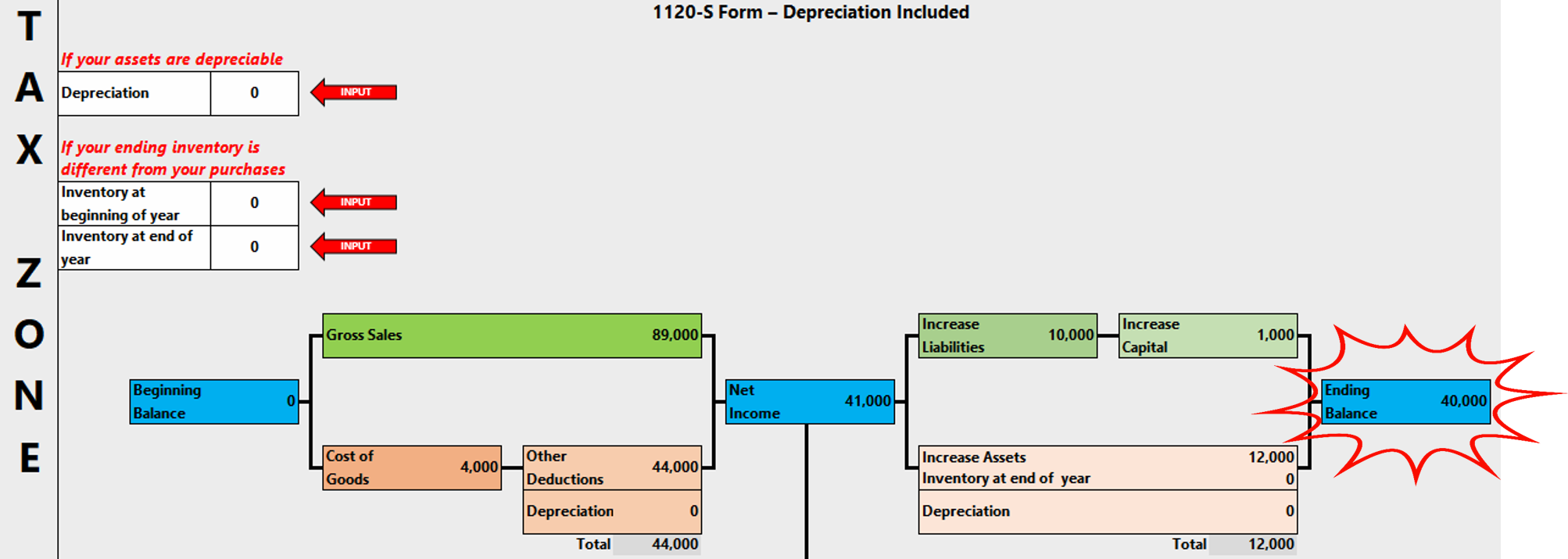
If there are depreciable assets, enter the asset value.
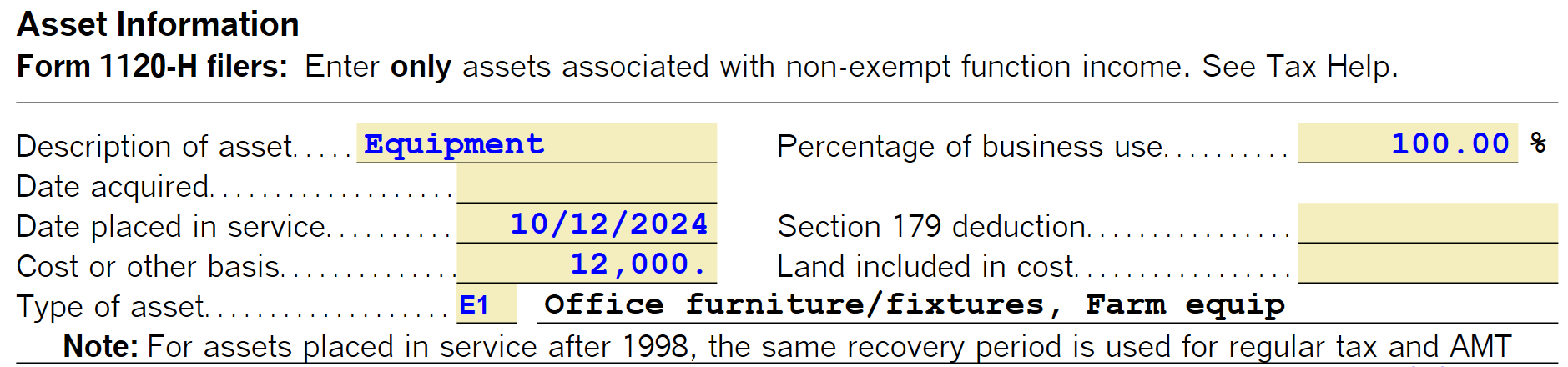
It calculates the depreciation value, which must be copied into the DEPRECIATION CELL.

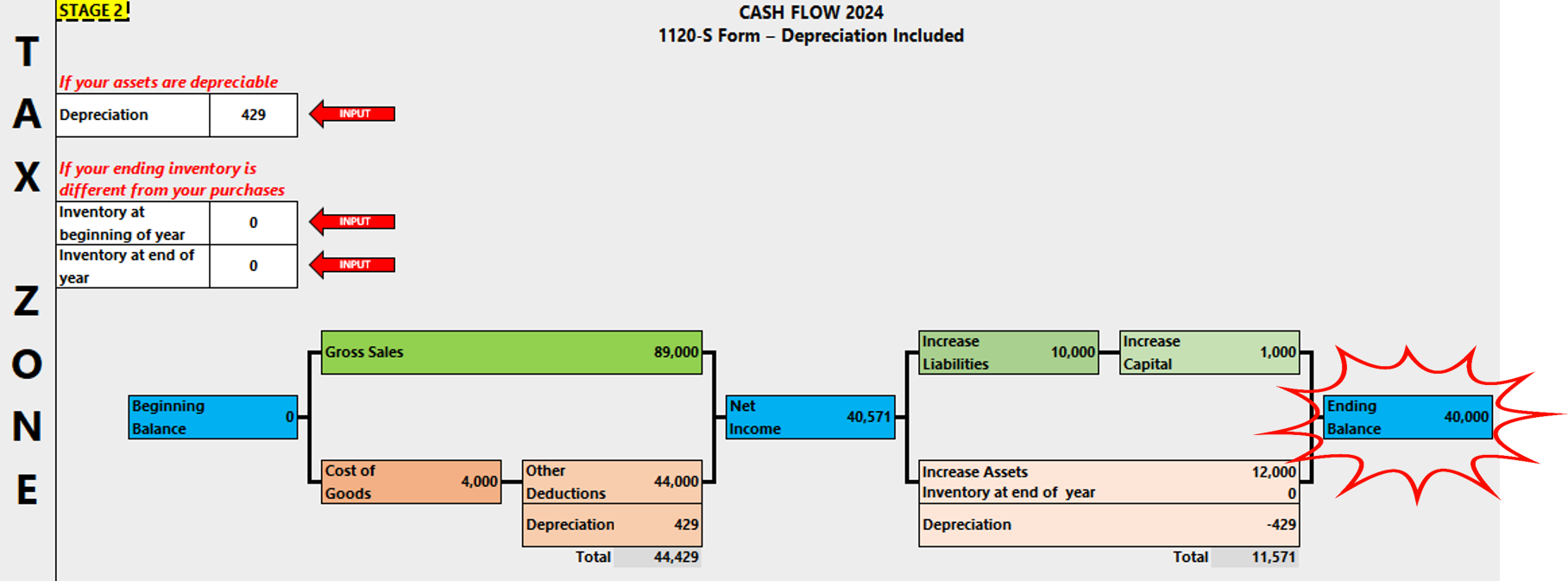
Similarly, we would need to enter the values for both the beginning inventory from the previous year (Line 1) and the ending inventory for the current period (Line 7). In our example: zero beginning and one thousand ending.

With these results, we can obtain the COGS value reflected on Line 8.
This allows you to see the new overview for tax calculation.
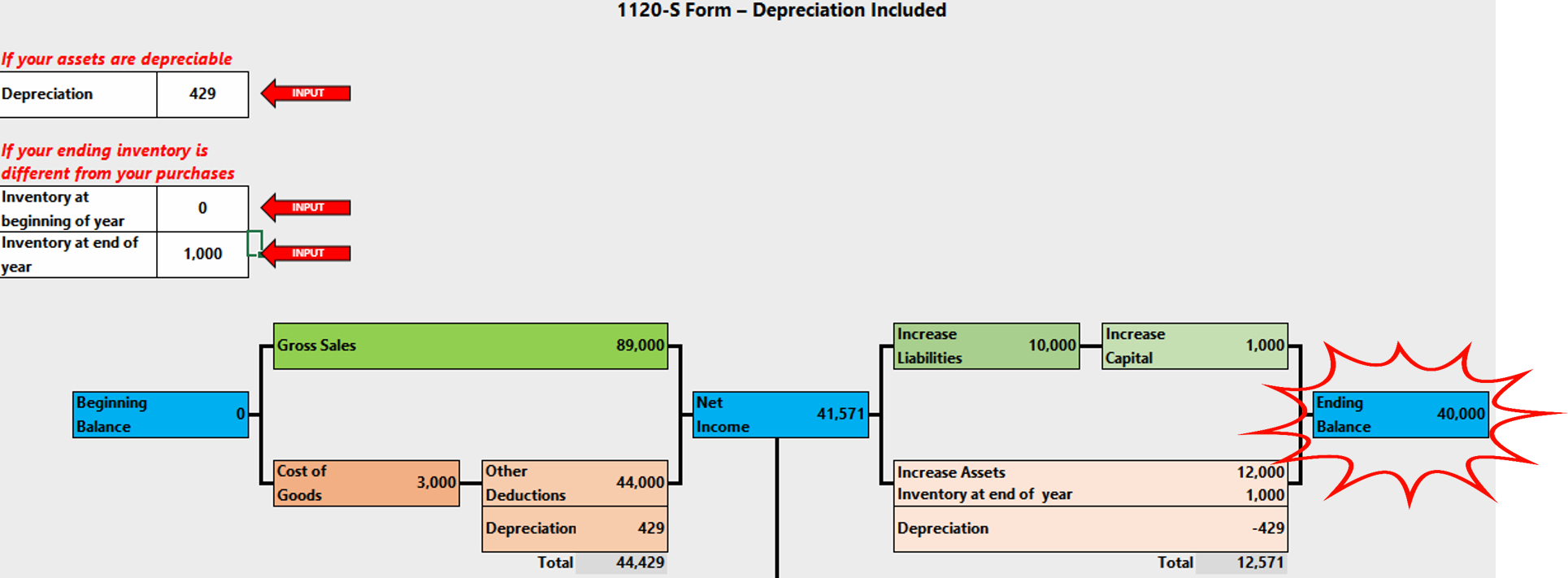
To continue the calculation, transfer the $89,000 value of Gross Receipts or Sales to tax Form 1120S, Line 1a.

Finally, enter the value of Other Deductions on line 20.

Copy the Ordinary Business Income (Loss) from line 22 of Form 1120S.

Paste it in Net Income (Loss) Per books Line 1. This is for the Schedule M-1 form.

Place the Net Income $41,571 in Accounts Payable on the Balance Sheet.
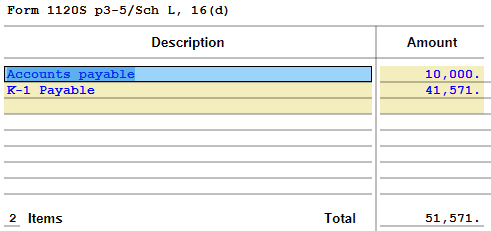
Transfer the Balance Sheet data from Tax Zone to Schedule L (Balance Sheet).
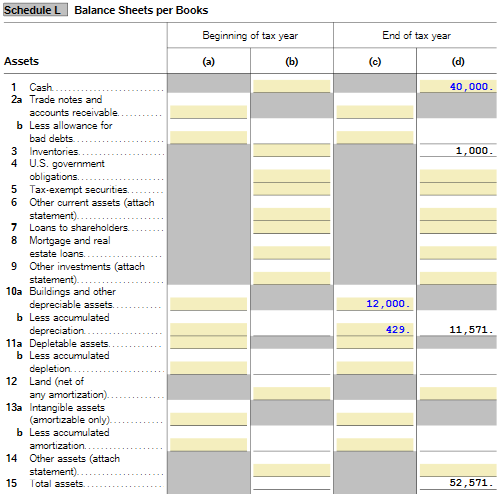
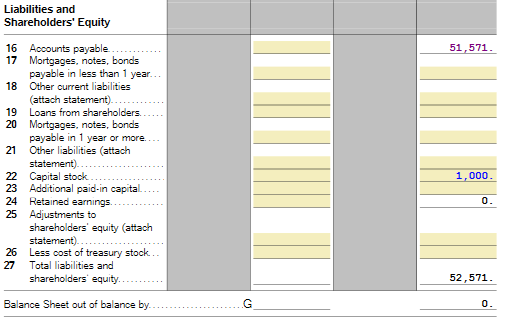
This completely eliminates the adjustment steps traditionally performed by accountants at the close of each fiscal year. The process no longer depends on accounting and instead allows connecting one fiscal year with the next as a continuous and verifiable chain.
The pivot that validates the entire system is the ending bank balance value, which is reflected in the tax sheet (Taxes Sheet) and must exactly match the ending balance of the bank statements.
SPECIAL NOTE
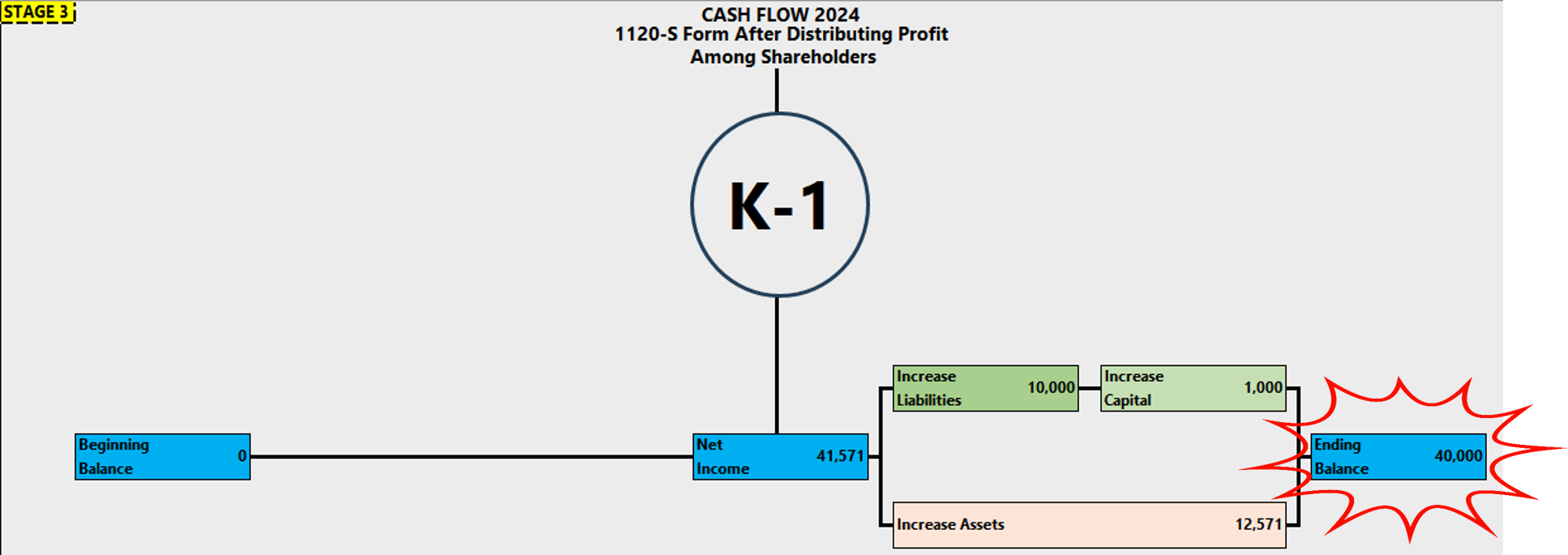
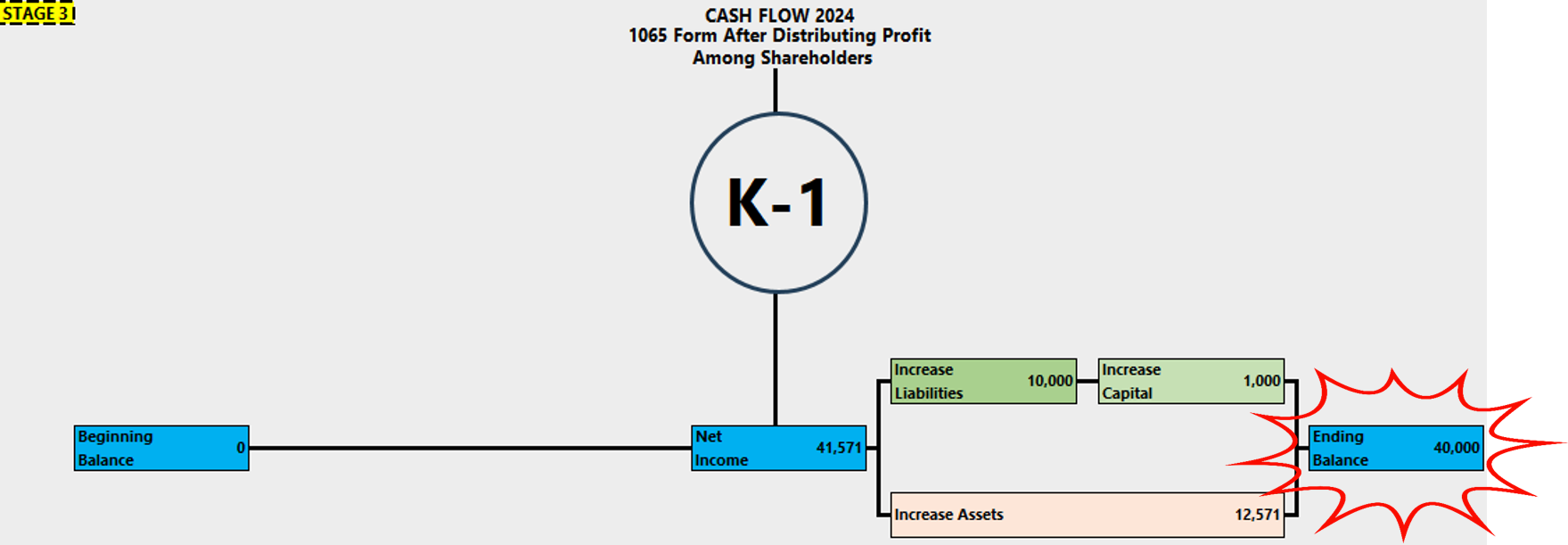
If the profit is distributed among the partners, the $41,571 must be distributed to the Schedule K-1s, resulting in an overdraft in the bank account of (-) $1,571.
1065 Tax Form Calculation
After finishing the reclassification, Konvver will provide this overview on the results page to calculate taxes on Form 1065, for each line in web and Excel formats.
A typical example has been created for Form 1065.
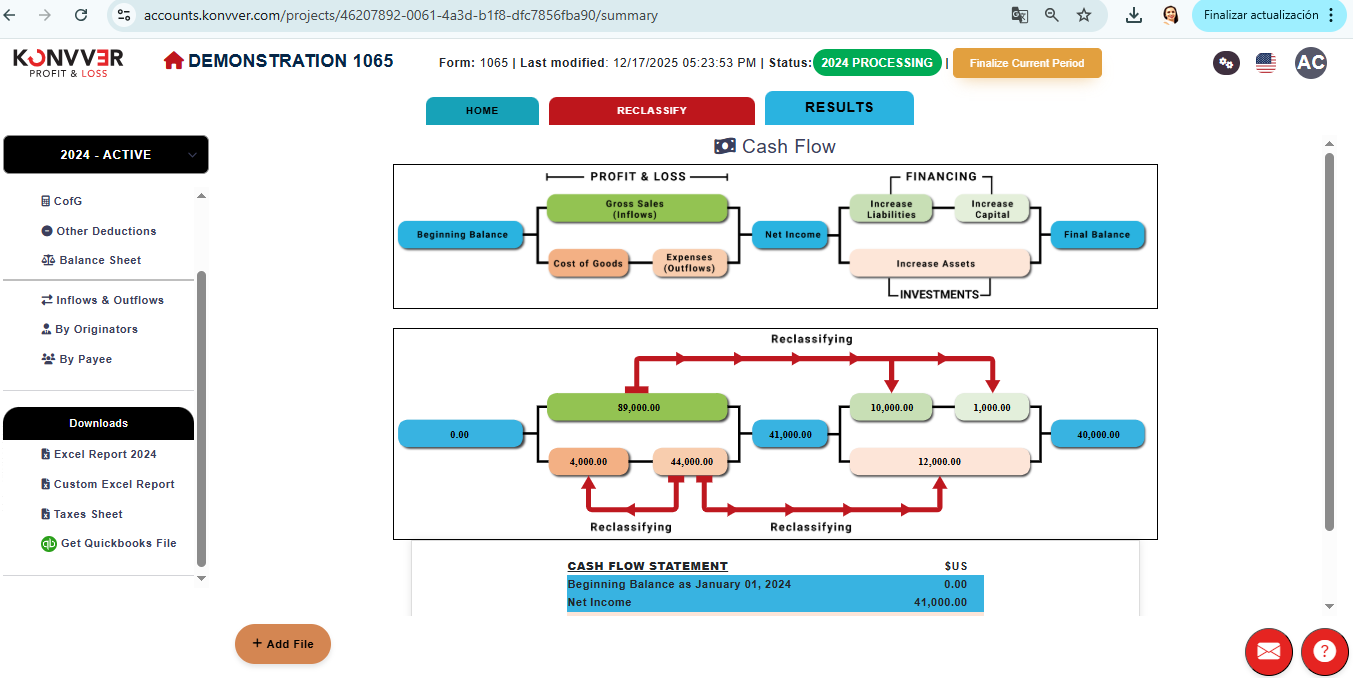
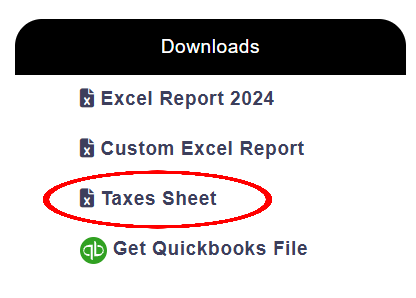
Go to the Downloads section and download the "Taxes Sheet" file, where we can enter depreciation and inventory data IF NECESSARY.
In "TAX ZONE", you can see the results to calculate the values that go on tax Form 1065.
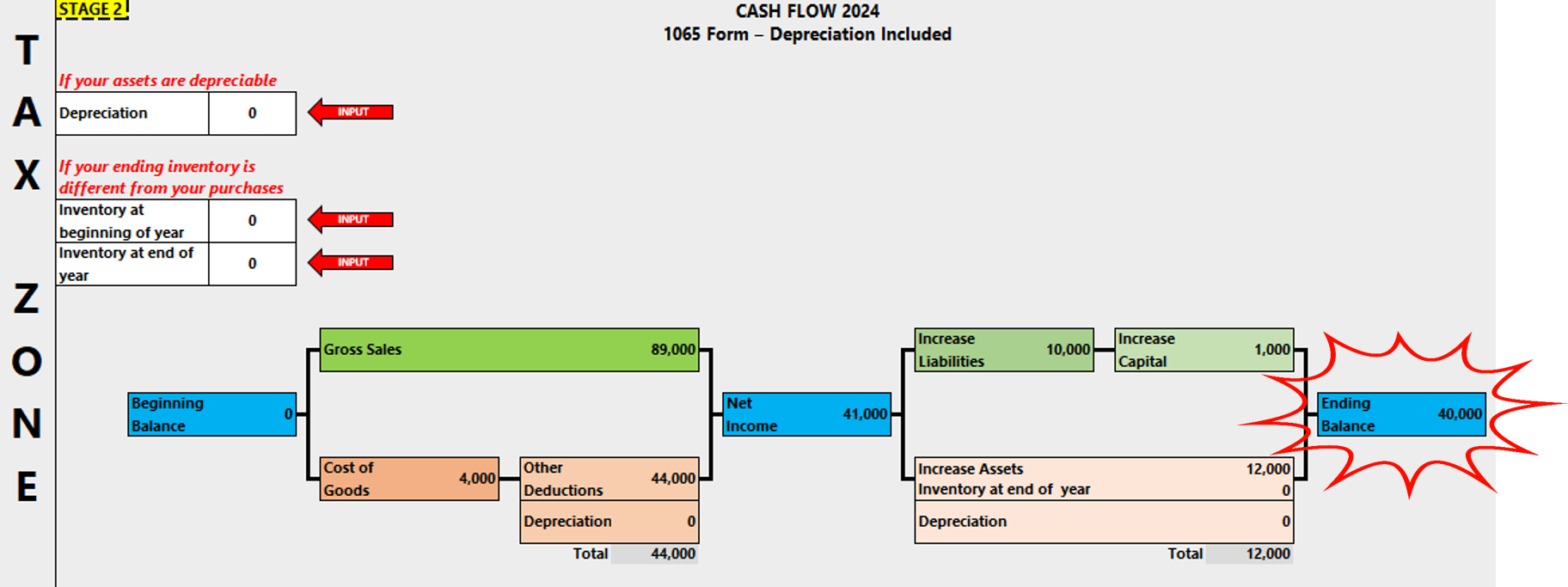
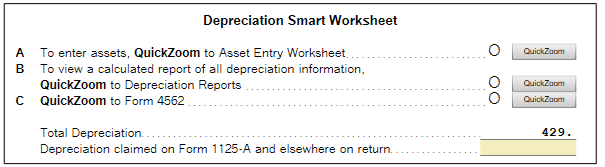
If there are depreciable assets, enter the asset value.

It calculates the depreciation value, which must be copied into the DEPRECIATION CELL.
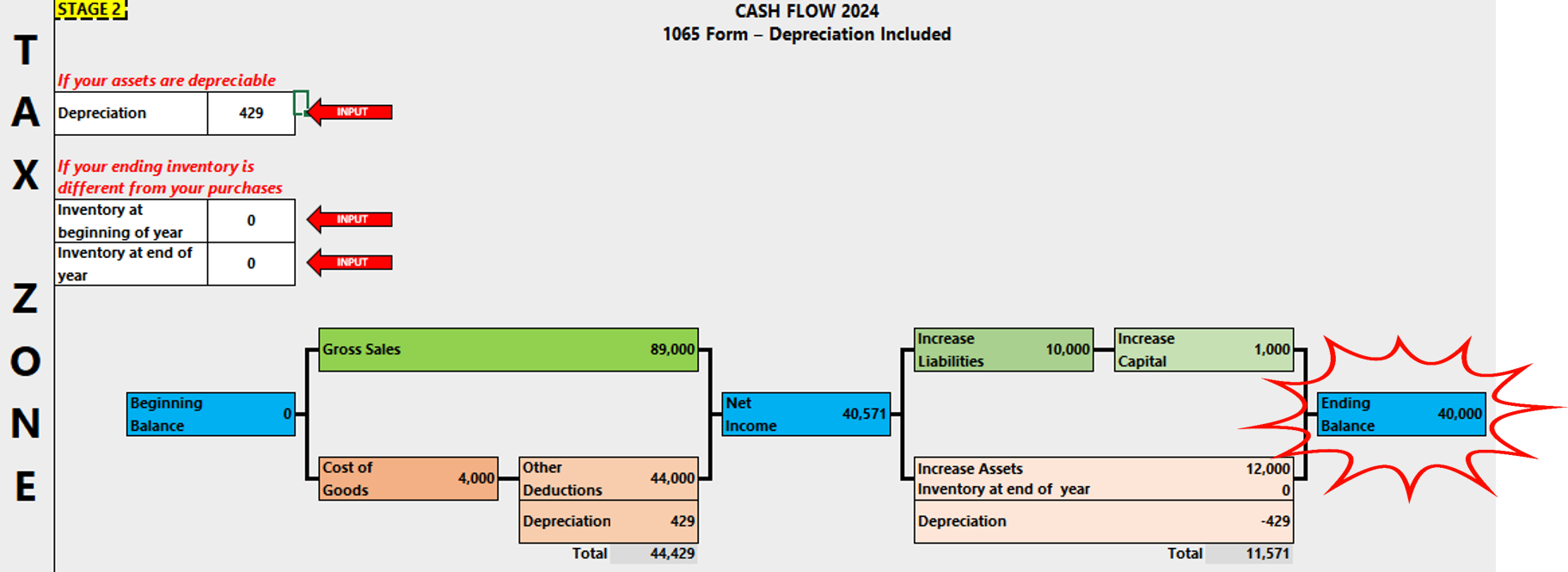
Similarly, we would need to enter the values for both the beginning inventory from the previous year (Line 1) and the ending inventory for the current period (Line 7). In our example: zero beginning and one thousand ending.

With these results, we can obtain the COGS value reflected on Line 8.
This allows you to see the new overview for tax calculation.
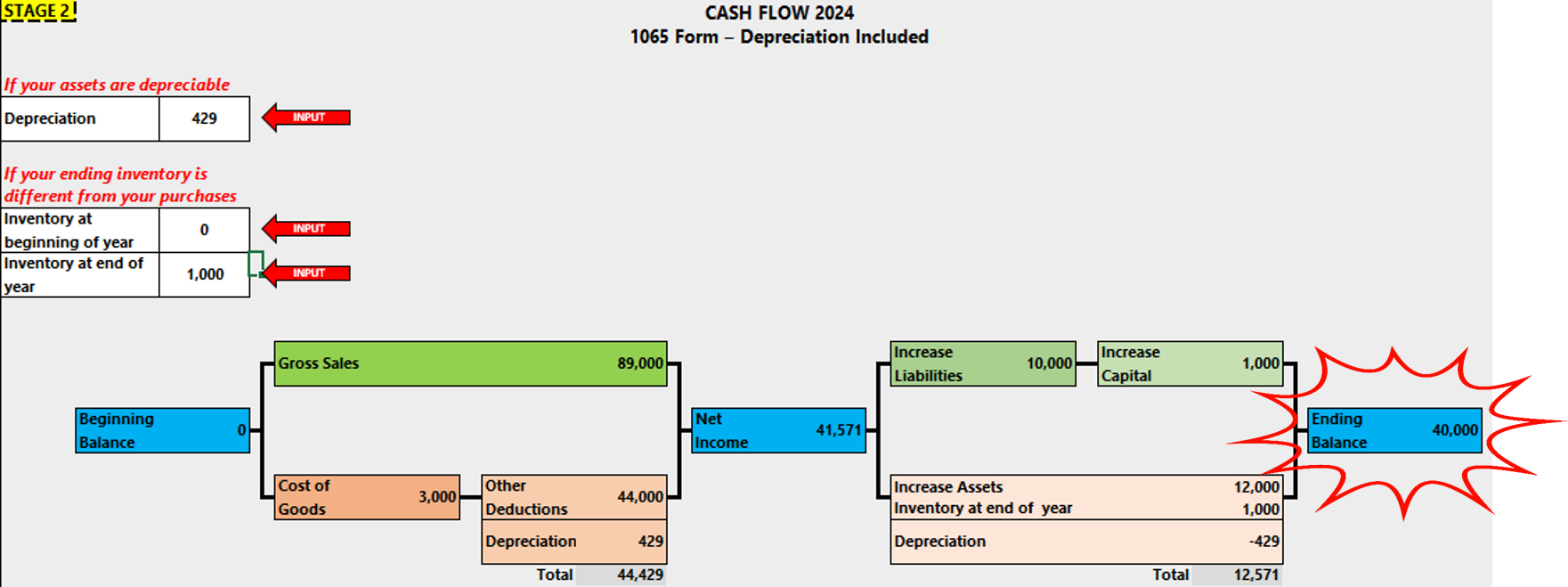
To continue the calculation, transfer the $89,000 value of Gross Receipts or Sales to tax Form 1065, Line 1a.

Finally, enter the value of Other Deductions on line 21.

Copy the ordinary business income (Loss) LINE 23 from Form 1065.

And paste it in Net Income (Loss) Per books Line of Schedule M-1.

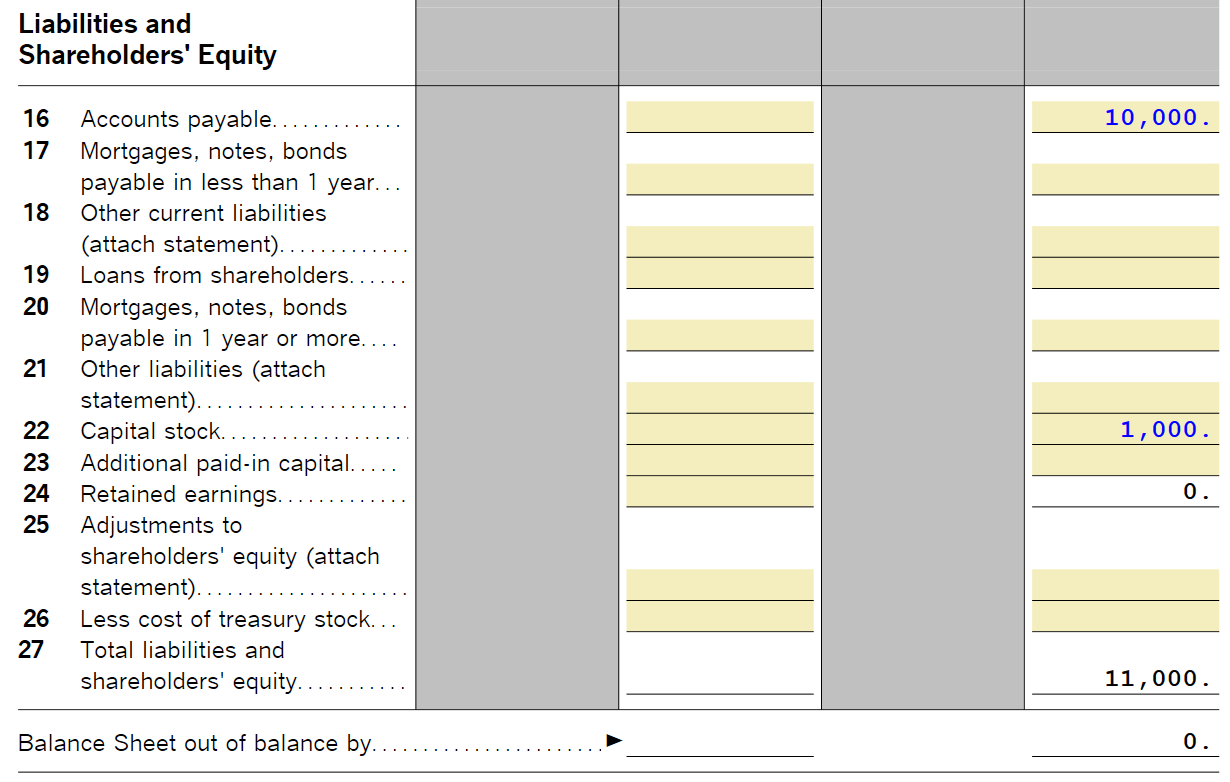
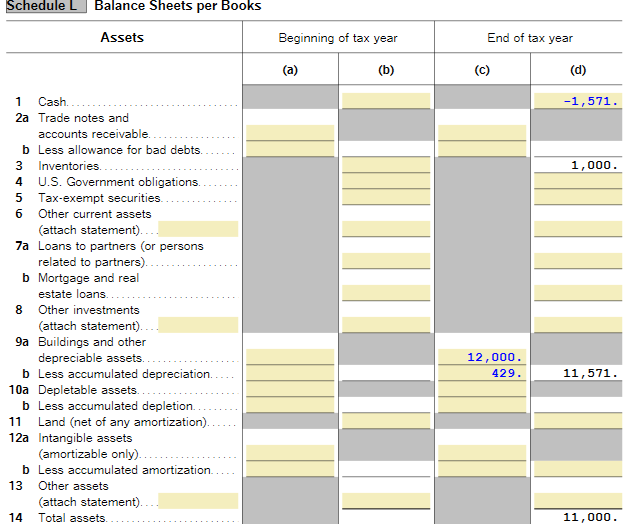
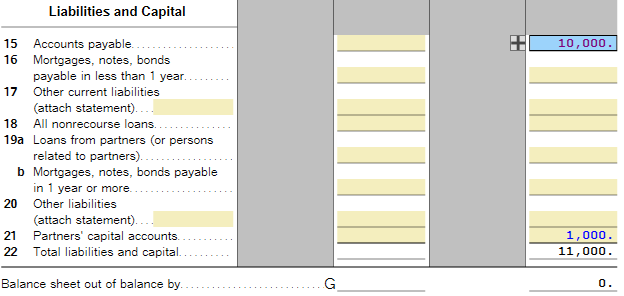
Place the Net Income $41,571 in Accounts Payable on the Balance Sheet.
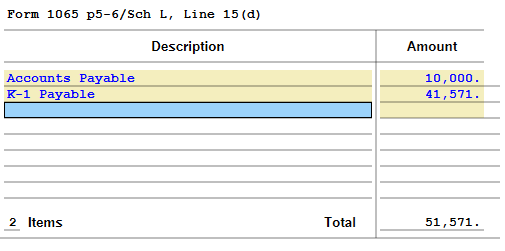
Transfer the Balance Sheet data from Tax Zone to Schedule L (Balance Sheet).
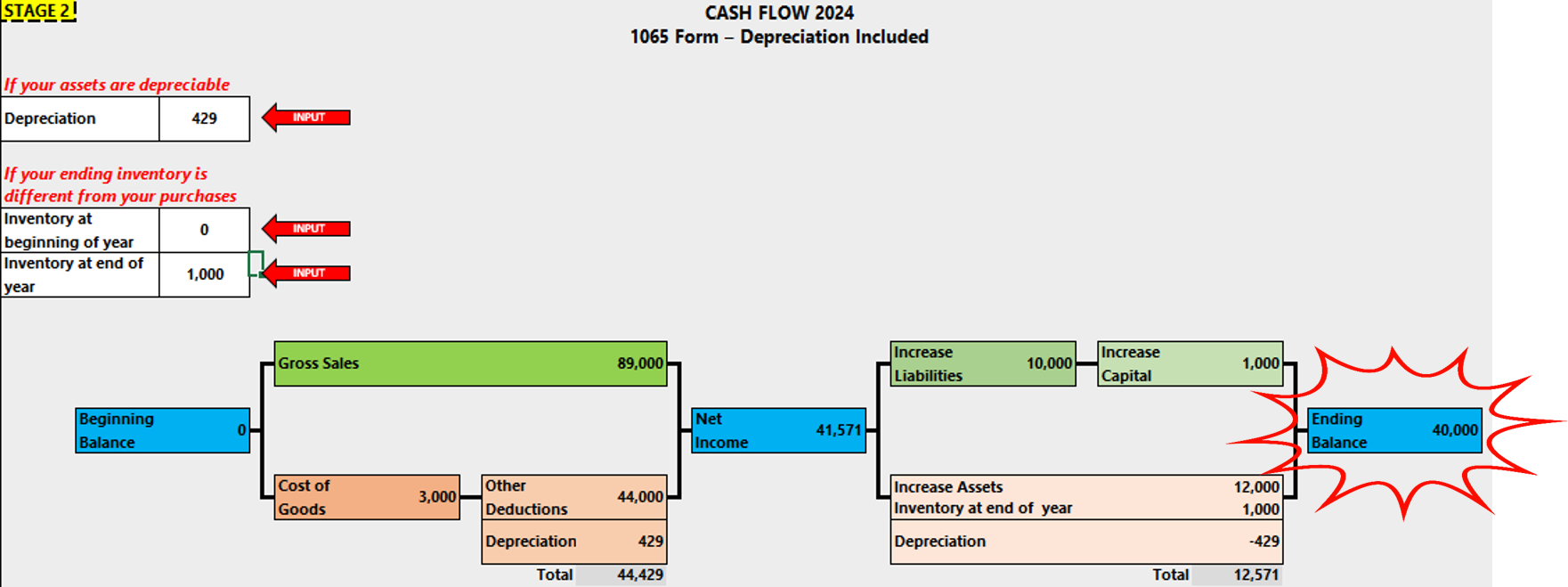
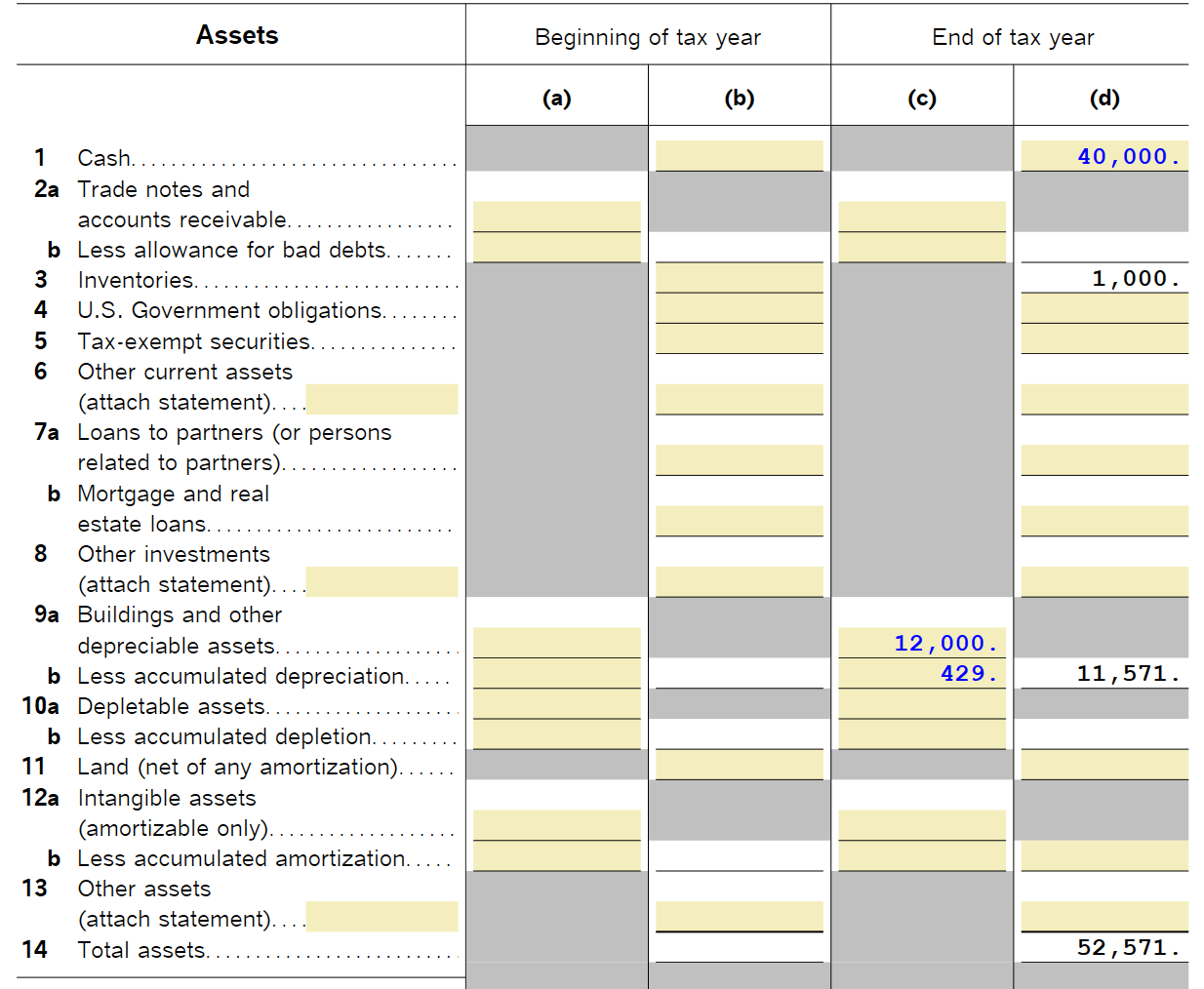
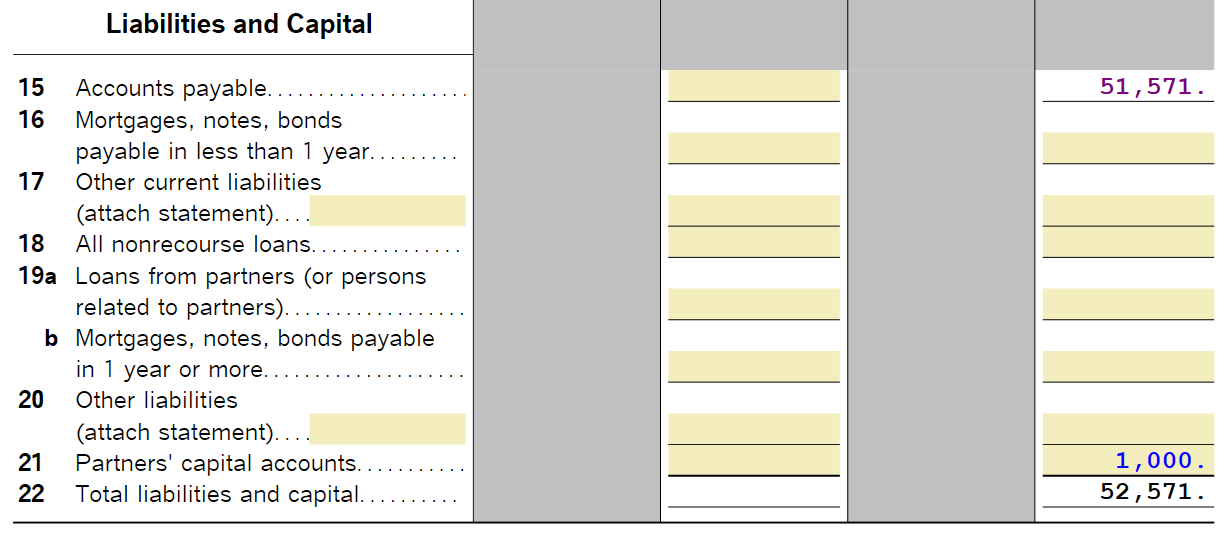
This completely eliminates the adjustment steps traditionally performed by accountants at the close of each fiscal year. The process no longer depends on accounting and instead allows connecting one fiscal year with the next as a continuous and verifiable chain.
The pivot that validates the entire system is the ending bank balance value, which is reflected in the tax sheet (Taxes Sheet) and must exactly match the ending balance of the bank statements.
SPECIAL NOTE
If the profit is distributed among the partners, the $41,571 must be distributed to the Schedule K-1s, resulting in an overdraft in the bank account of (-) $1,571.
Schedule C Tax Calculation
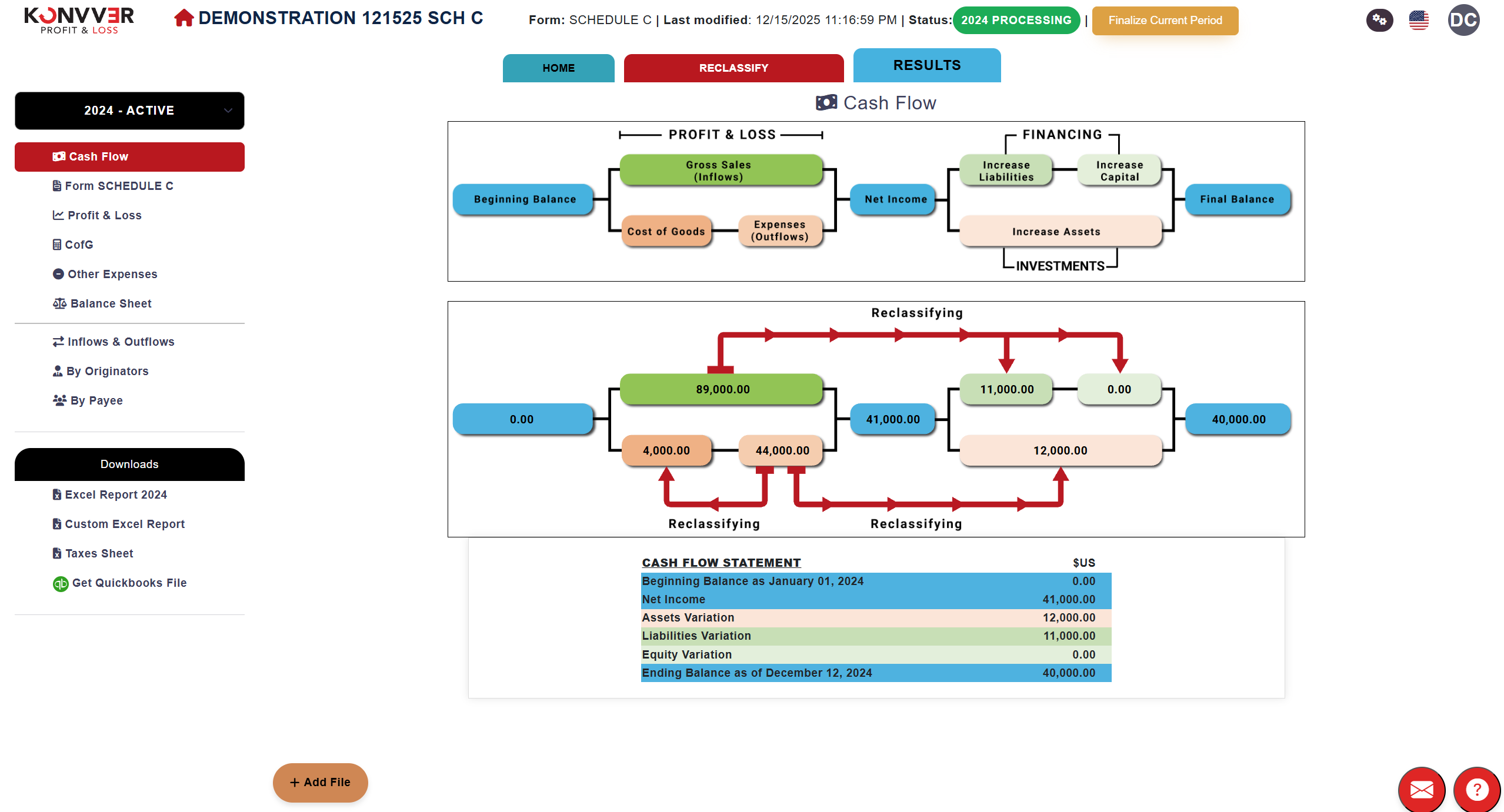
After finishing the reclassification, Konvver will provide this overview on the results page to calculate taxes on Schedule C, for each line in web and Excel formats.
A typical example has been created for Schedule C.
Note:
Schedule C only includes depreciation and inventory values (Balance Sheet accounts).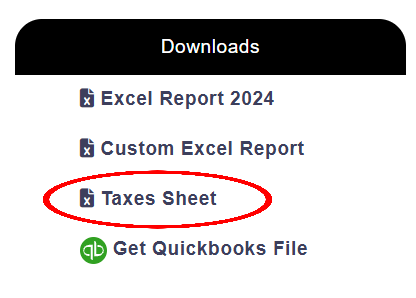
In "TAX ZONE", you can see the results to calculate the values that go on the tax forms (Schedule C, Form 1040).
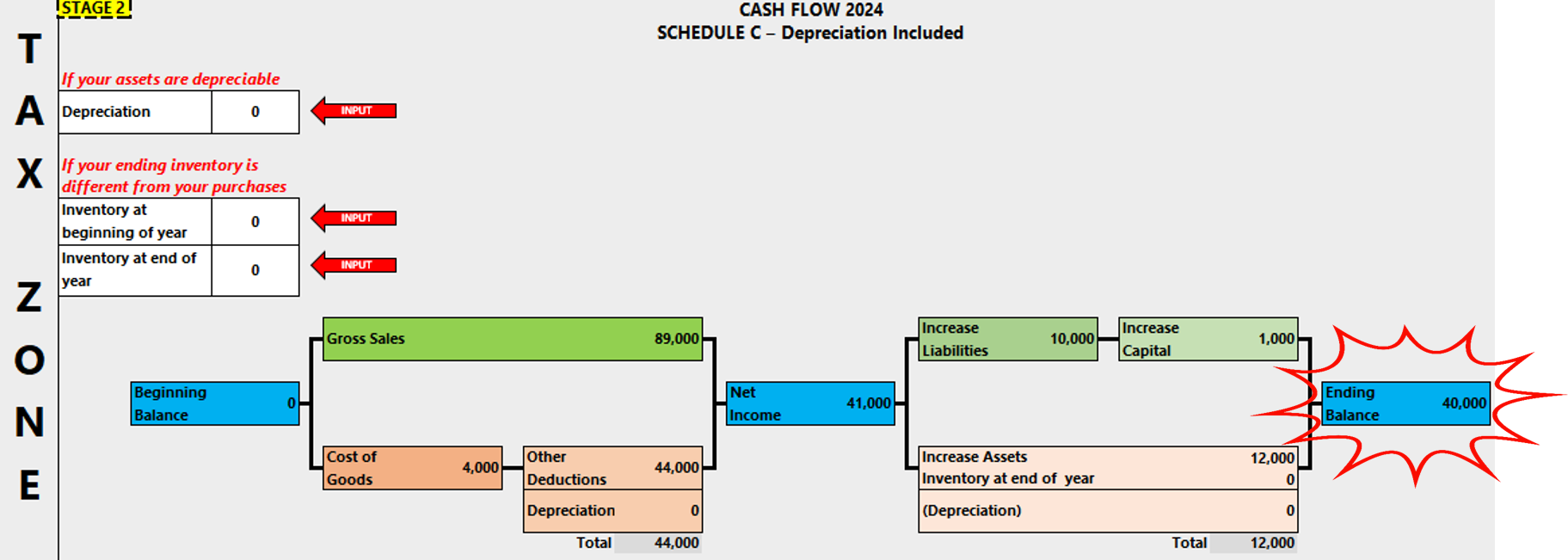
If there are depreciable assets, enter the asset value.
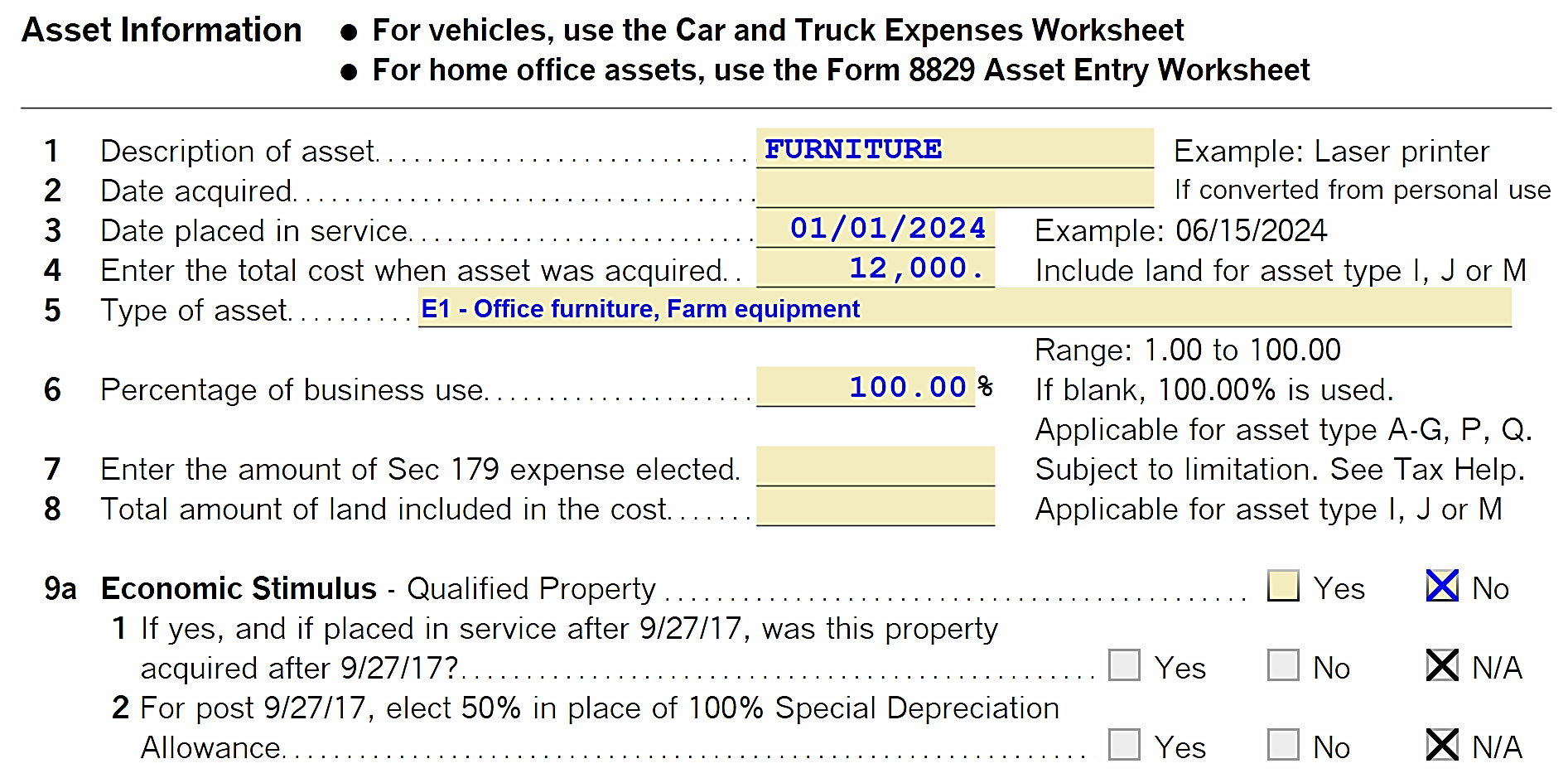
It calculates the depreciation value, which must be copied into the DEPRECIATION CELL.

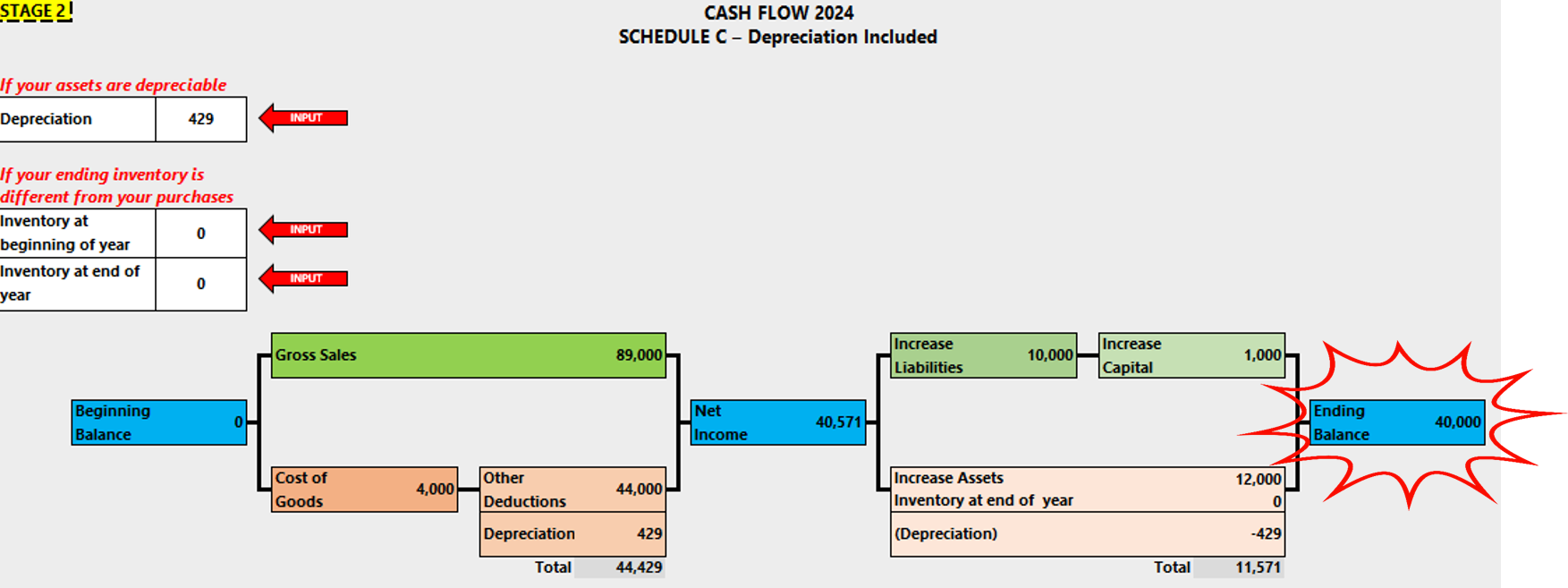
Similarly, we would need to enter the values for both the beginning inventory from the previous year (Schedule C, Line 35) and the ending inventory for the current period (Line 41). In our example: zero beginning and one thousand ending.
With these results, we can obtain the COGS value reflected on Line 42.
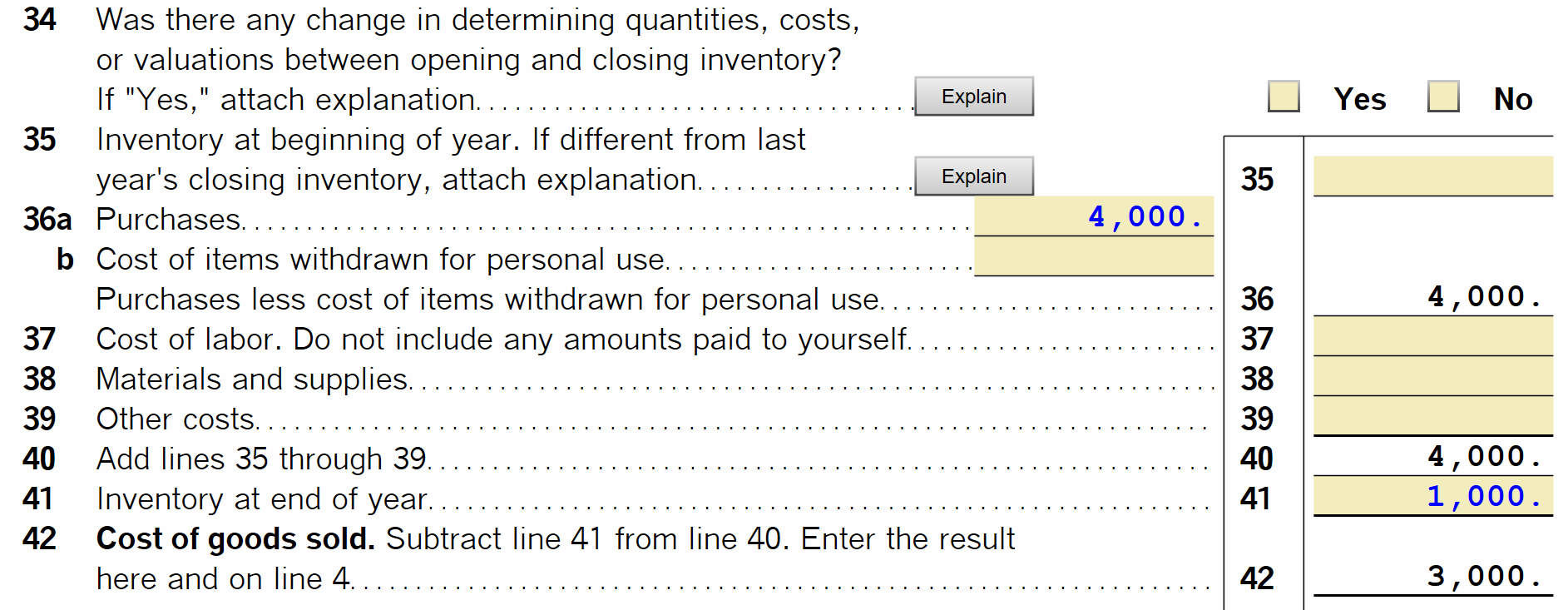
This allows you to see the new overview for tax calculation.
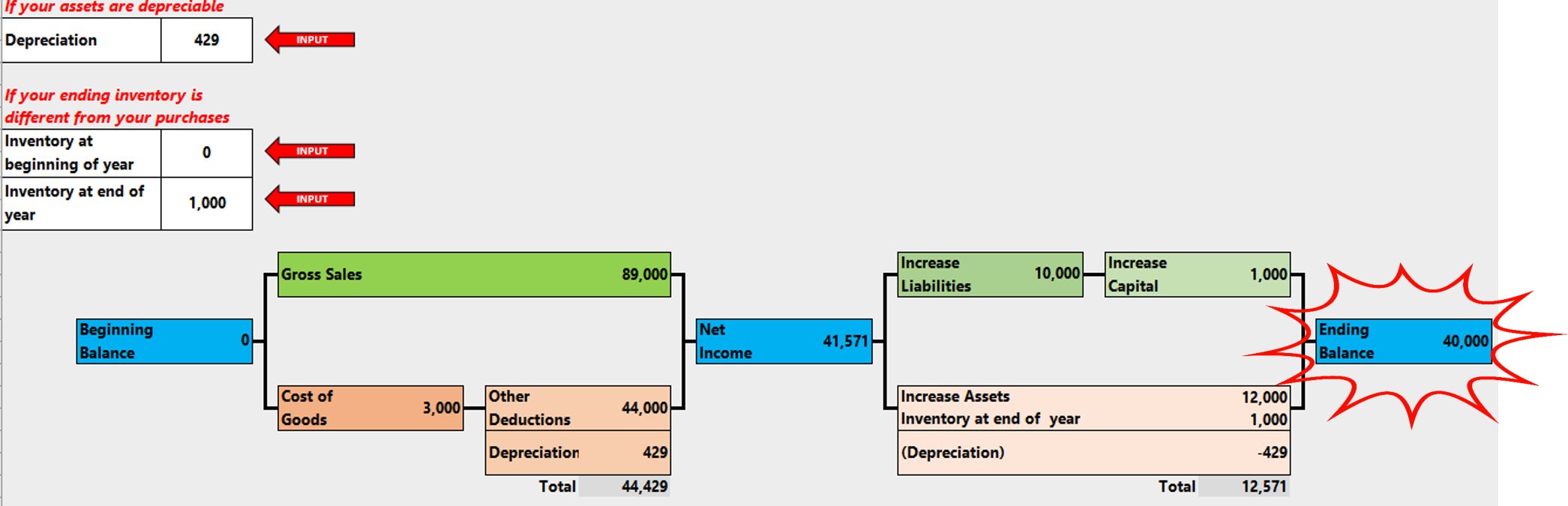
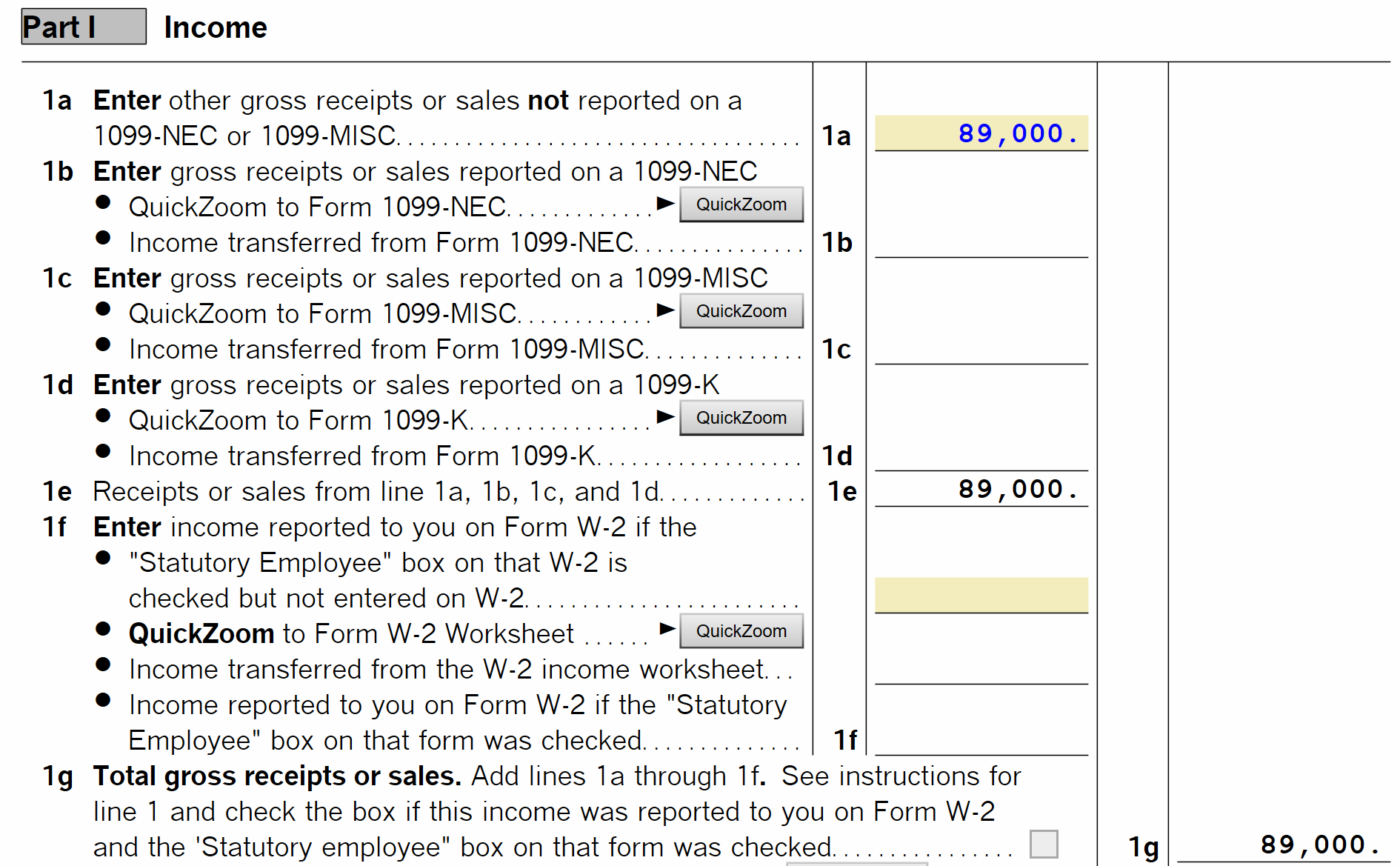
To continue the calculation, transfer the $89,000 value of Gross Receipts or Sales to Schedule C, Line 1a.
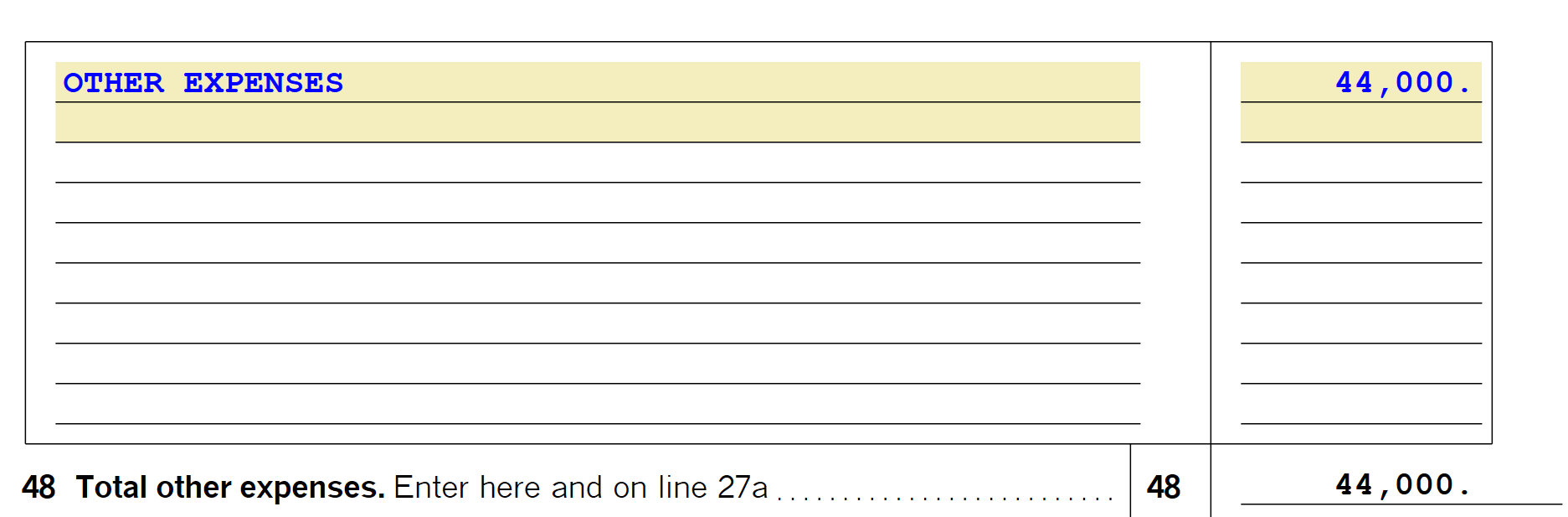
Finally, enter the value of Other Expenses.
This allows you to see the final result reported on Line 29 of Schedule C. This value will automatically be reflected on Line 8 of Form 1040. For the example, $41,571.
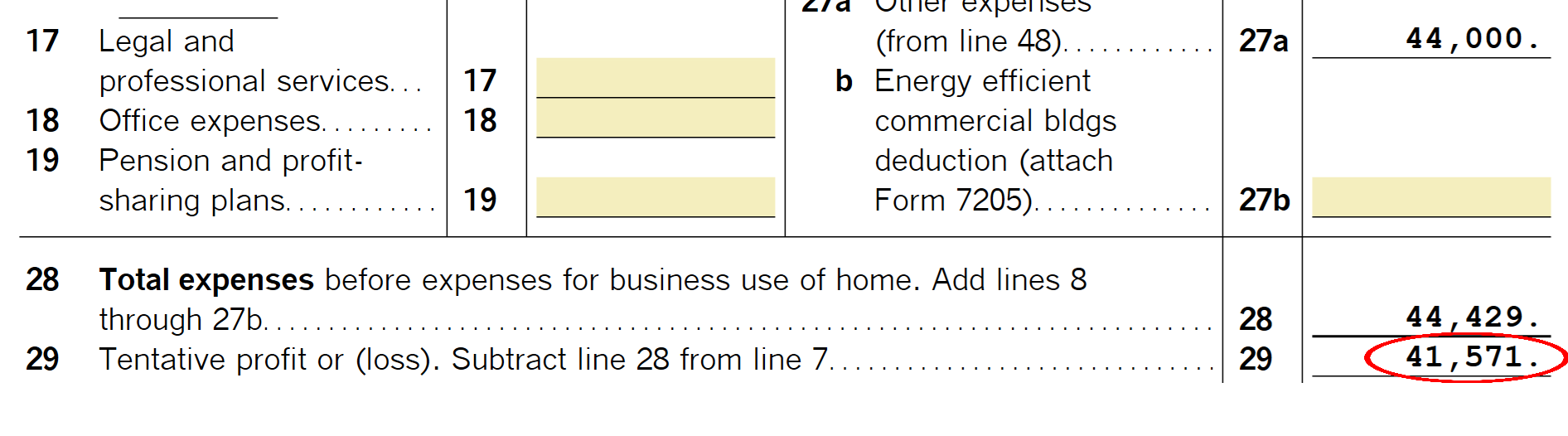

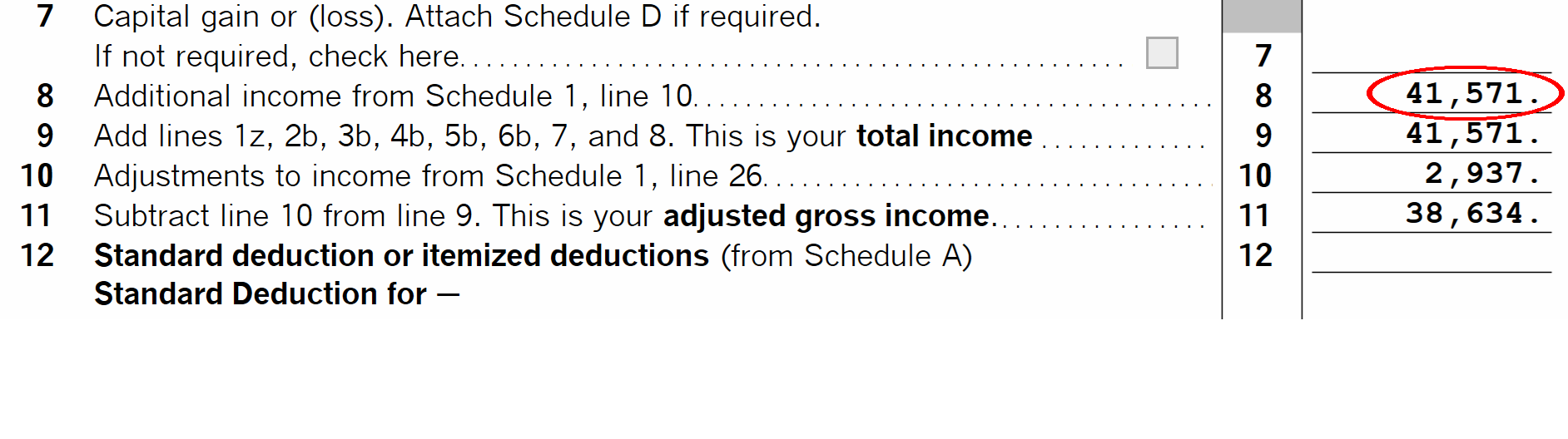
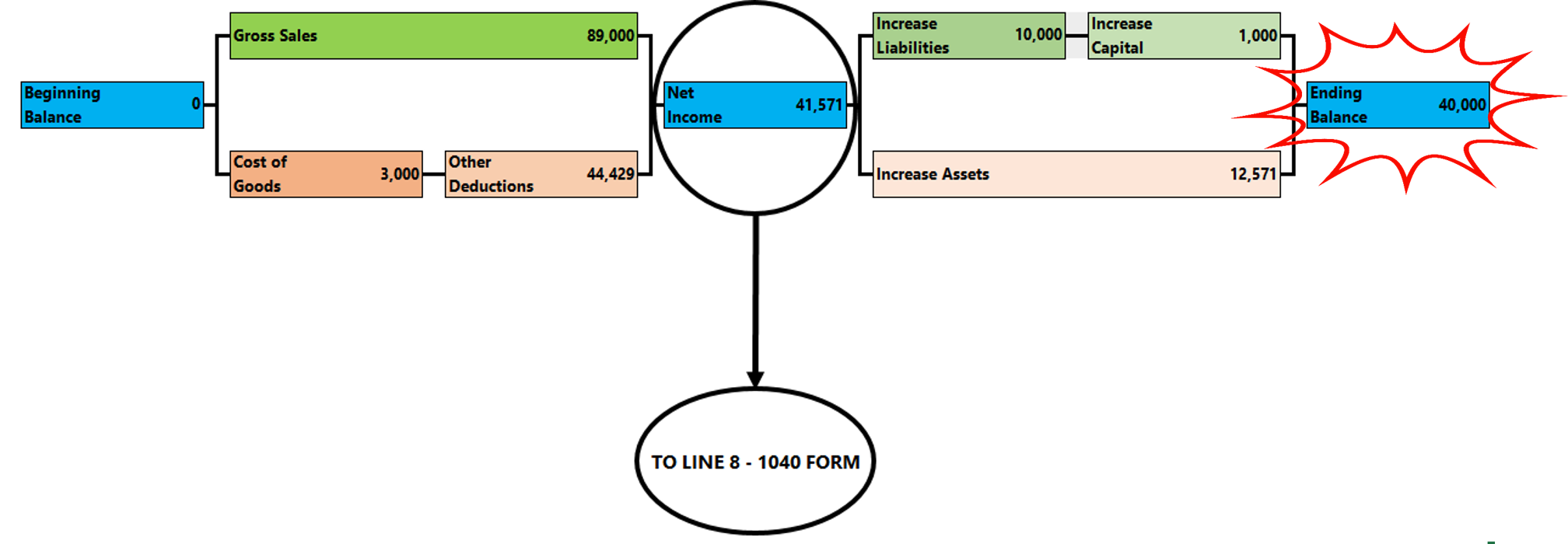
AND WITH THAT, WE CONFIRM THAT WE HAVE CORRECTLY FILLED OUT THE FORMS.
This completely eliminates the adjustment steps traditionally performed by accountants at the close of each fiscal year. The process no longer depends on accounting and instead allows connecting one fiscal year with the next as a continuous and verifiable chain.
The pivot that validates the entire system is the ending bank balance value; in the case of Schedule C, this data cannot be recorded, as it does not include balance sheets.